Providers
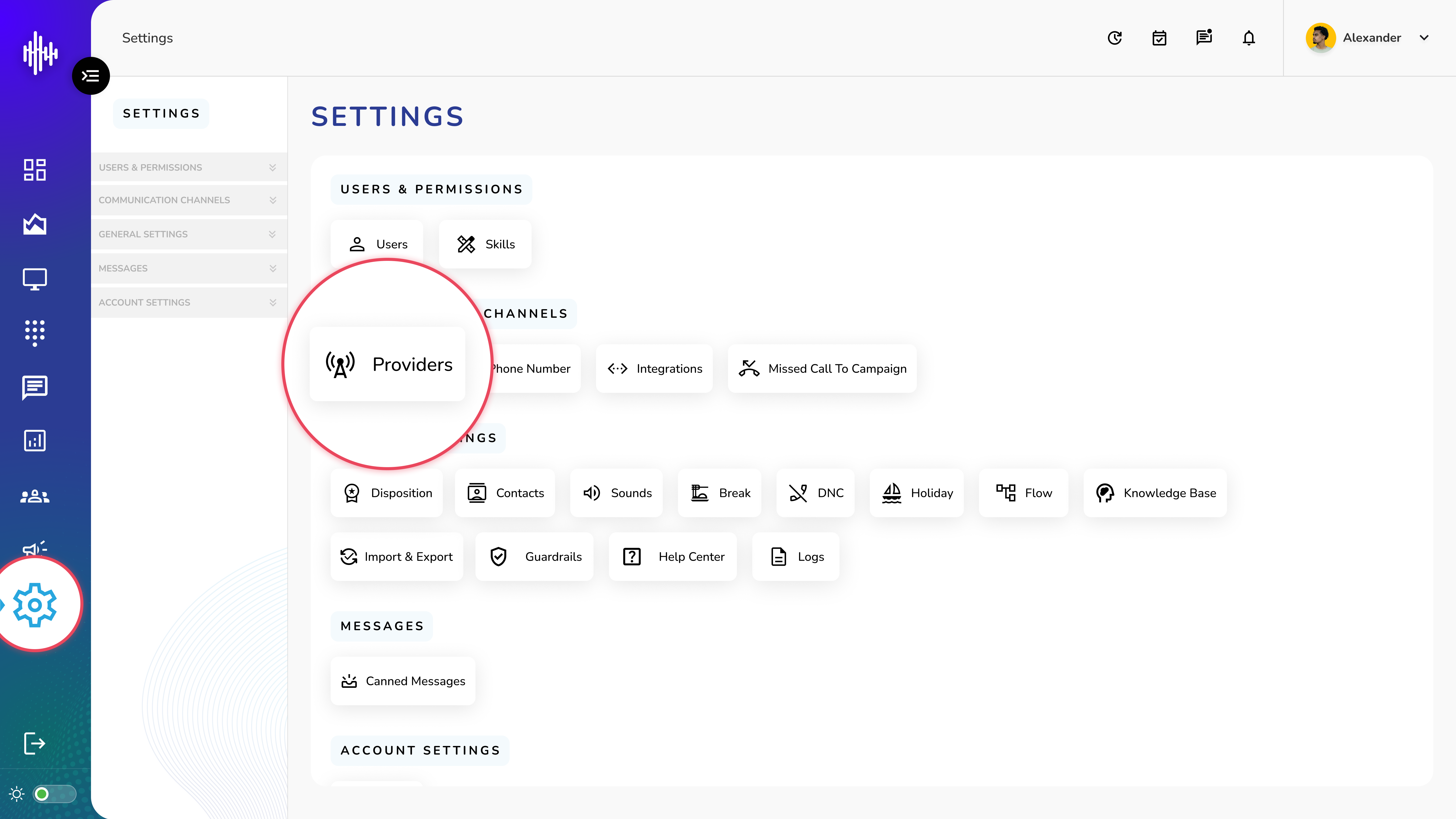
1. Login to your admin account
2. Click "Settings" from the left side menu
3. Click “Providers” to access the Provider's details.
Providers Management Guide
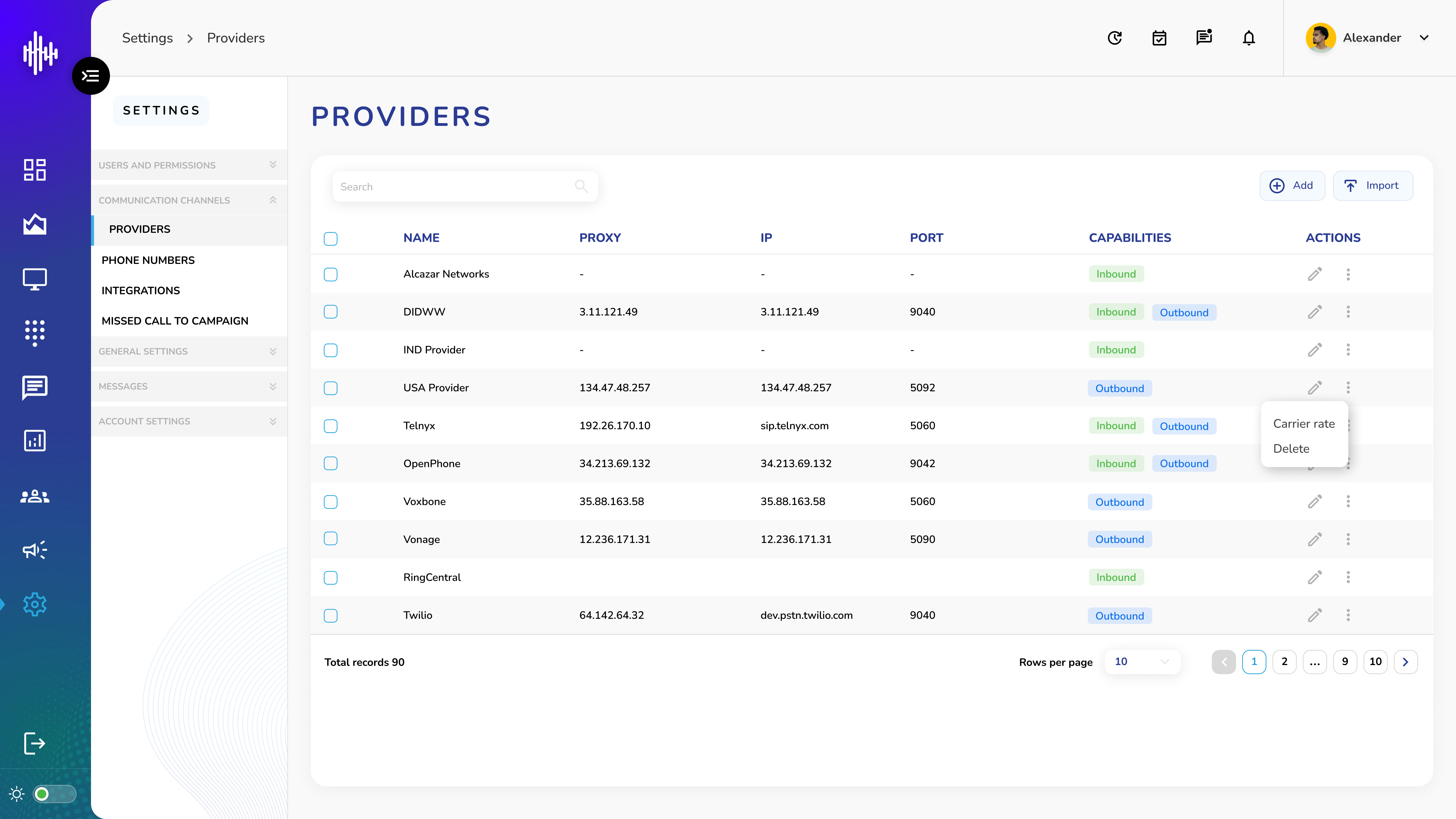
Provider List Screen
The provider screen displays all configured carriers/providers with their connection details and capabilities.
List View Columns
| Column | Description |
|---|---|
| Name | Provider/Carrier name |
| Proxy | Proxy server address |
| IP | Server IP address |
| Port | Connection port number |
| Capabilities | Service types (Inbound/Outbound) |
Capabilities Indicators
-
🟢 Inbound: Provider can receive incoming calls
-
🔵 Outbound: Provider can make outgoing calls
Available Actions
1. Edit (Pencil Icon)
a. Modify provider configuration details
2. Options Menu (Three Dots)
a. Carrier Rate: View/edit calling rates
b. Delete: Remove provider configuration
3. Click "+Add" button to add a new provider
Additional Features
-
Search bar to filter providers
-
Import button to bulk import providers
-
Pagination controls at bottom
-
Adjustable rows per page
Provider configurations are critical for call routing and telephony services. Ensure accurate configuration of all fields.
Add New Provider Guide
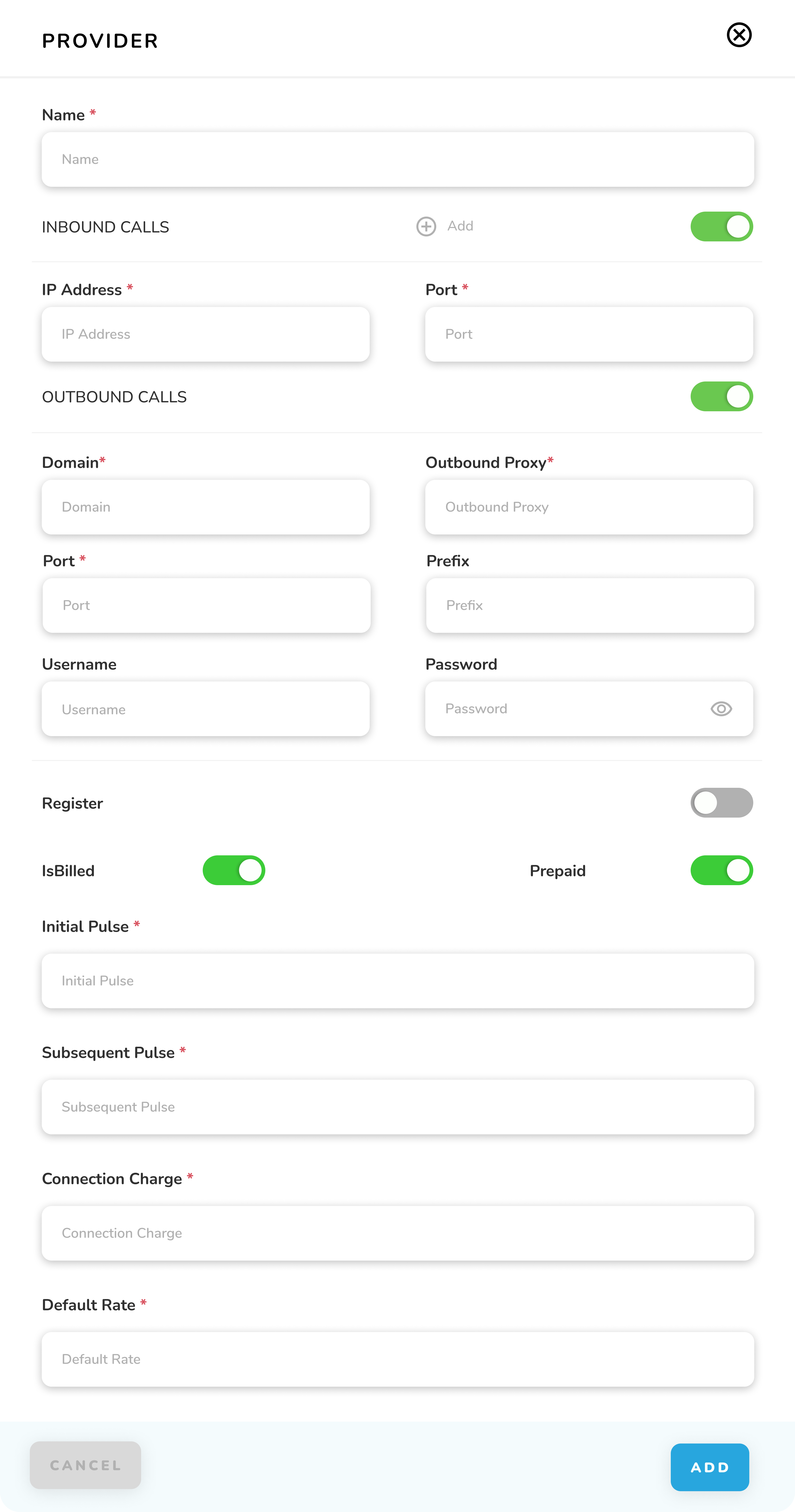
Add Provider Popup Form
1. Basic Information
a. Provider Name* (Required)
2. Inbound Call Settings
| Toggle ON enables | Description |
|---|---|
| IP Address* | Provider's inbound IP |
| Port* | Inbound connection port |
| +Add | Add multiple inbound configurations |
3. Outbound Call Settings
| Toggle ON enables | Description |
|---|---|
| Domain* | SIP domain name |
| Outbound Proxy* | Proxy server address |
| Port* | Outbound connection port |
| Prefix | Dial prefix (if required) |
| Username | SIP authentication username |
| Password | SIP authentication password |
4. Additional Settings
| Setting | Description |
|---|---|
| Register | Enable/disable SIP registration |
| IsBilled | Toggle billing configuration |
| Prepaid | Enable prepaid billing mode |
5. Billing Configuration (When IsBilled is enabled)
| Field | Description |
|---|---|
| Initial Pulse* | First billing interval |
| Subsequent Pulse* | Following billing intervals |
| Connection Charge* | Per-call connection fee |
| Default Rate* | Default per-minute rate |
Action Buttons
-
CANCEL: Close without saving
-
ADD: Save provider configuration
Notes:
-
Fields marked with * are mandatory
-
Multiple inbound configurations can be added using the +Add button
-
Billing settings only appear when IsBilled is enabled
-
Verify all credentials before saving
Ensure all required fields are filled accurately to avoid connection issues.