Skills
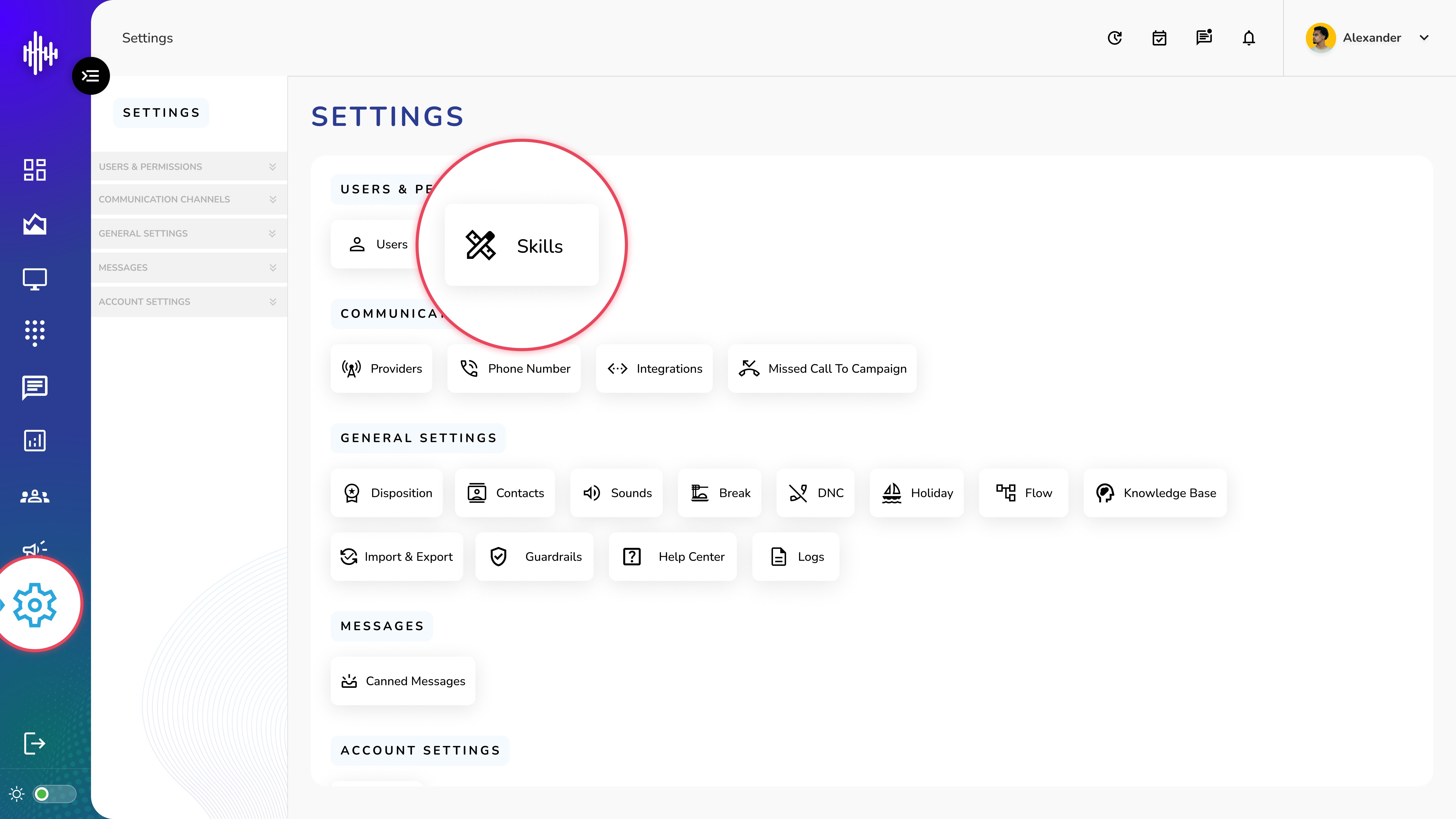
1. Login to your admin account
2. Click "Settings" from the left side menu
3. Click “Skills” to access the Skill list.
Skills Management
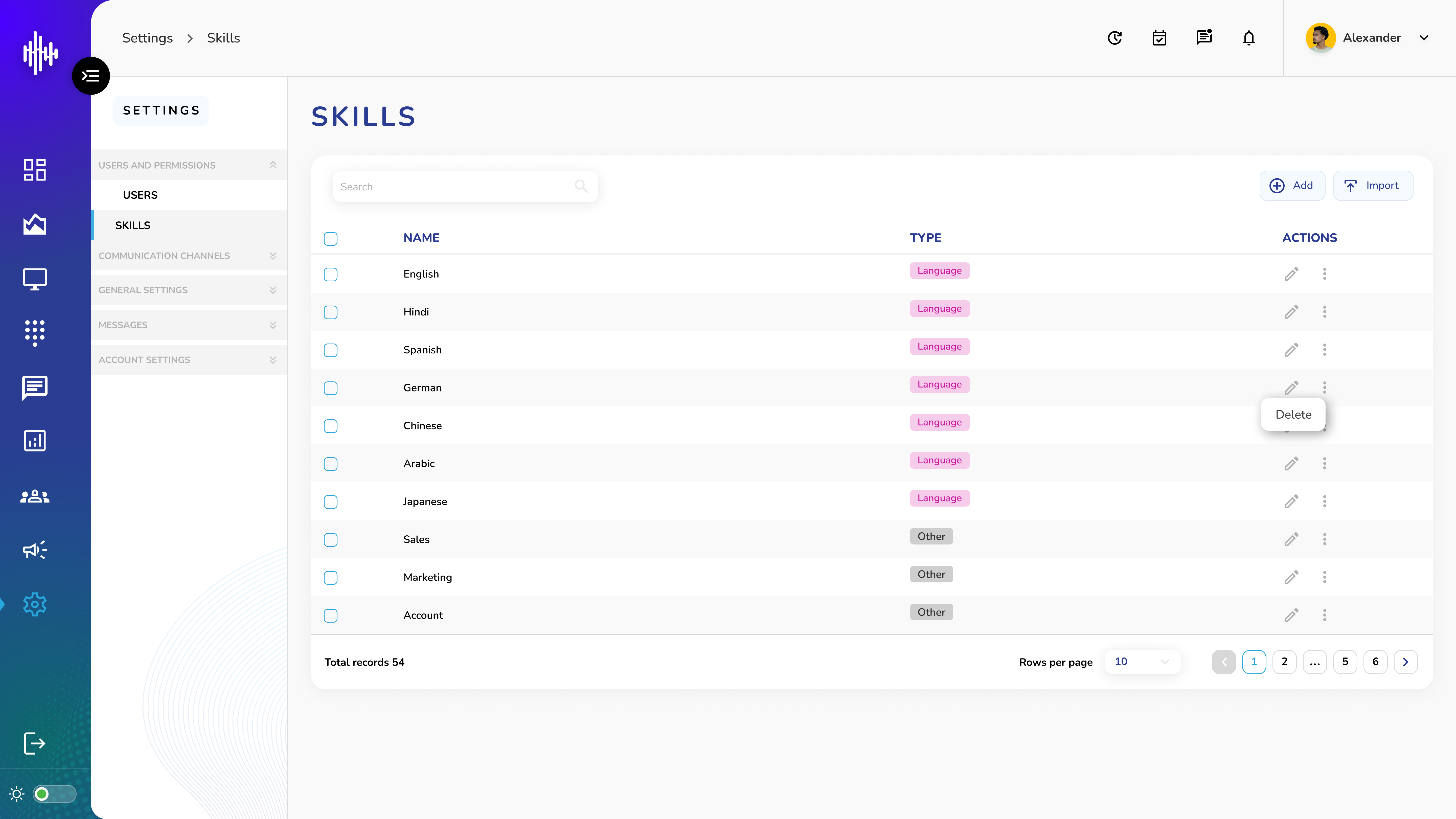
1. Skills List View
| Column | Description |
|---|---|
| Skill Name | Name of the skill |
| Type | Category: Language or Other |
| Actions | Edit and Delete options |
2. Available Actions
a. View Skills
i. See all skills in a list format
ii. Use search bar to find specific skills
iii. Import skill data (.CSV format)
b. Edit Skill
i. Click Edit (pencil) icon
ii. Modify uskillser details:
1. Skill name
Type cannot be modified after creation
c. Delete Skill
i. Click Delete (trash) icon
ii. Confirm deletion in popup
This action cannot be undone. Deleting a skill will remove it from all associated users
Create a new Skill
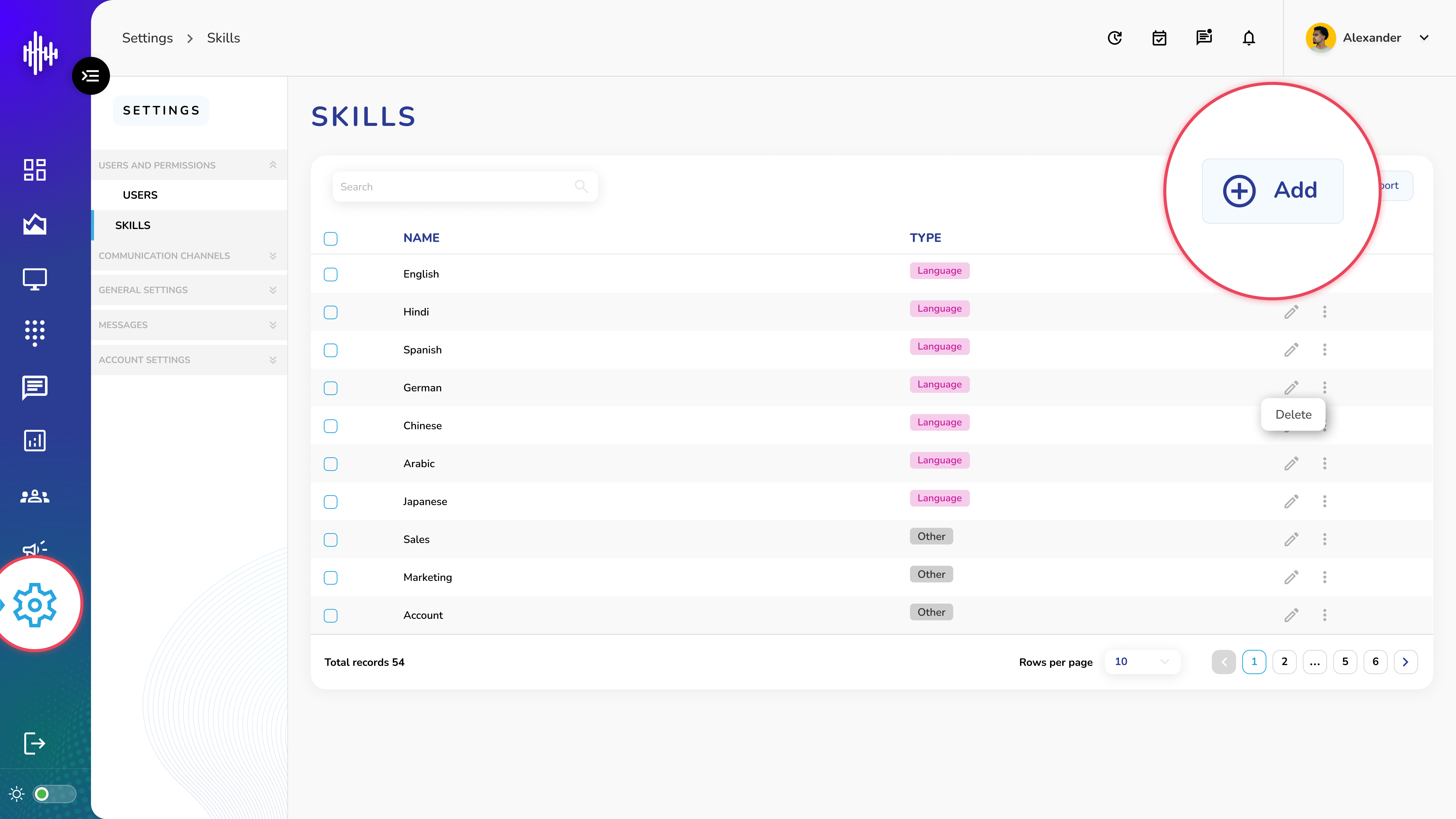
1. Add/Create a new Skill
a. On Skills management screen
b. Click "+Add" button top right
c. Popup will open to add a new skill
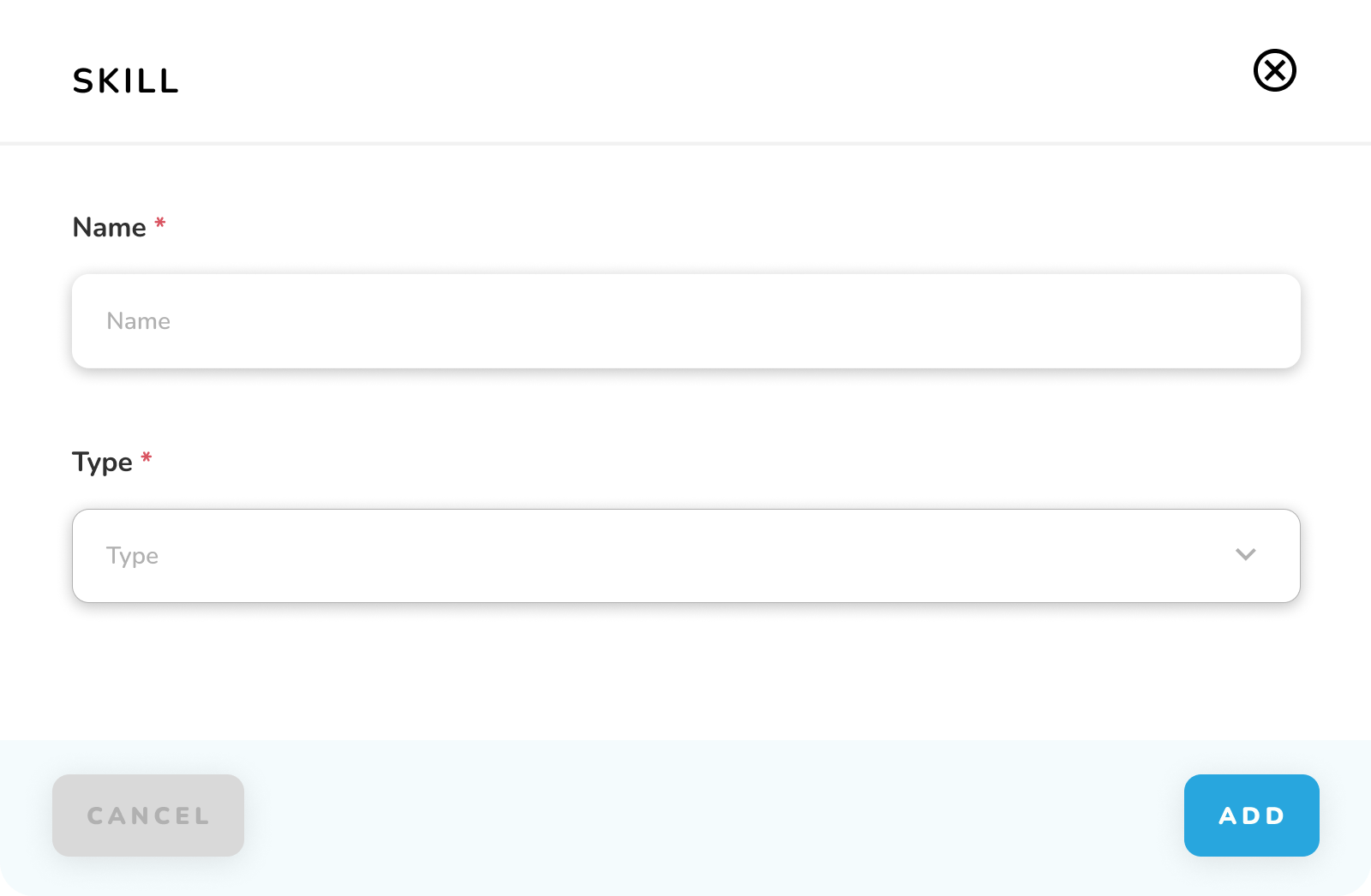
2. Fill Required Information
| Field | Description |
|---|---|
| Skill Name | Enter name of the skill |
| Skill Type | Choose from: • Language (for language skills) • Other (for technical or soft skills) |
3. Complete Skill Creation
a. Verify entered information
b. Click "Add" button
c. System will confirm successful skill creation
Important Notes:
-
Skill name should be clear and specific
-
Skill type cannot be changed after creation
-
Each skill name must be unique
-
Both fields are mandatory