Carrier Rate
Carrier Rate Management Guide
Accessing Carrier Rate Screen
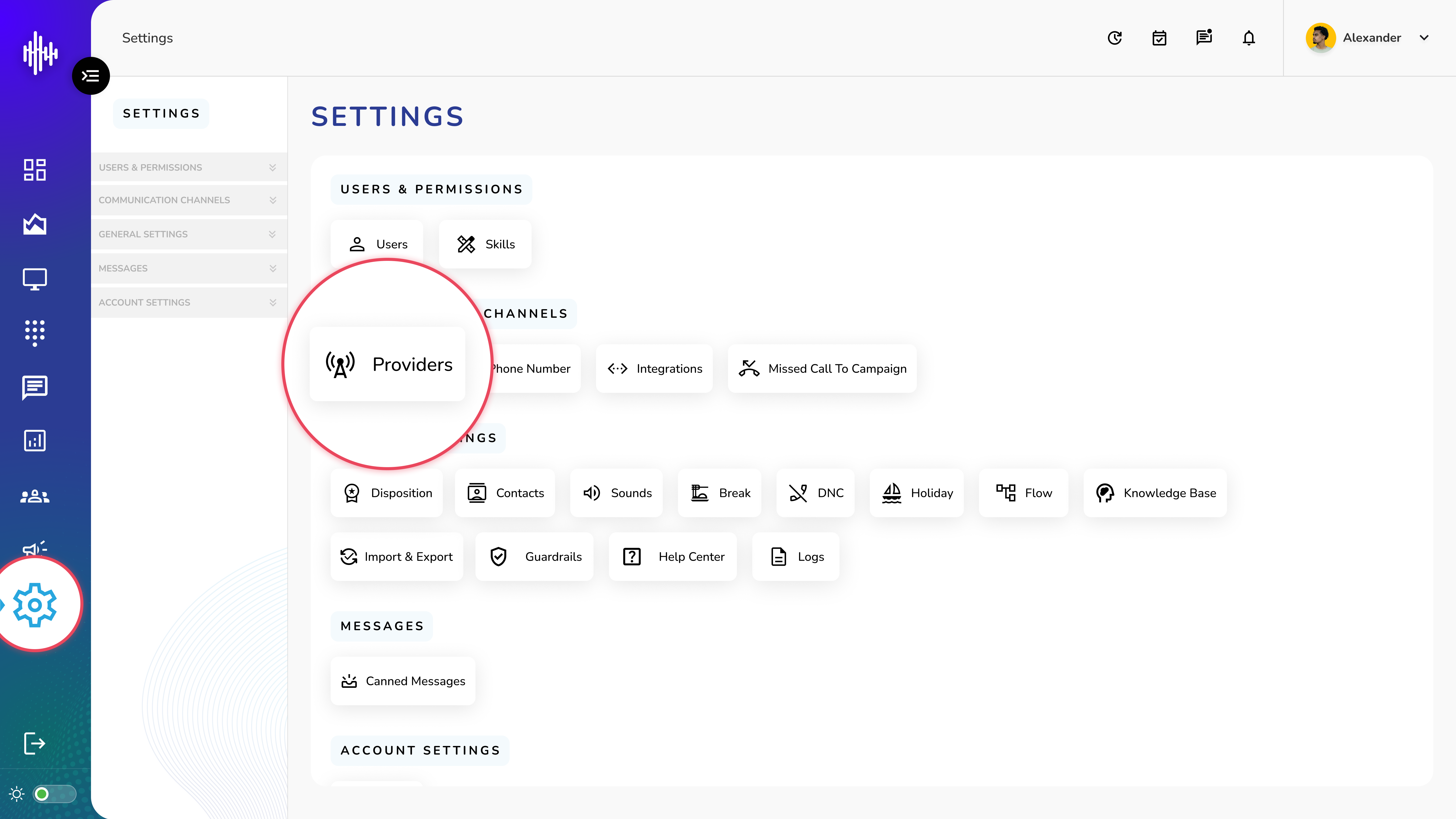
1. Login to your admin account
2. Click "Settings" from the left side menu
3. Click “Providers” to access the Provider's details.
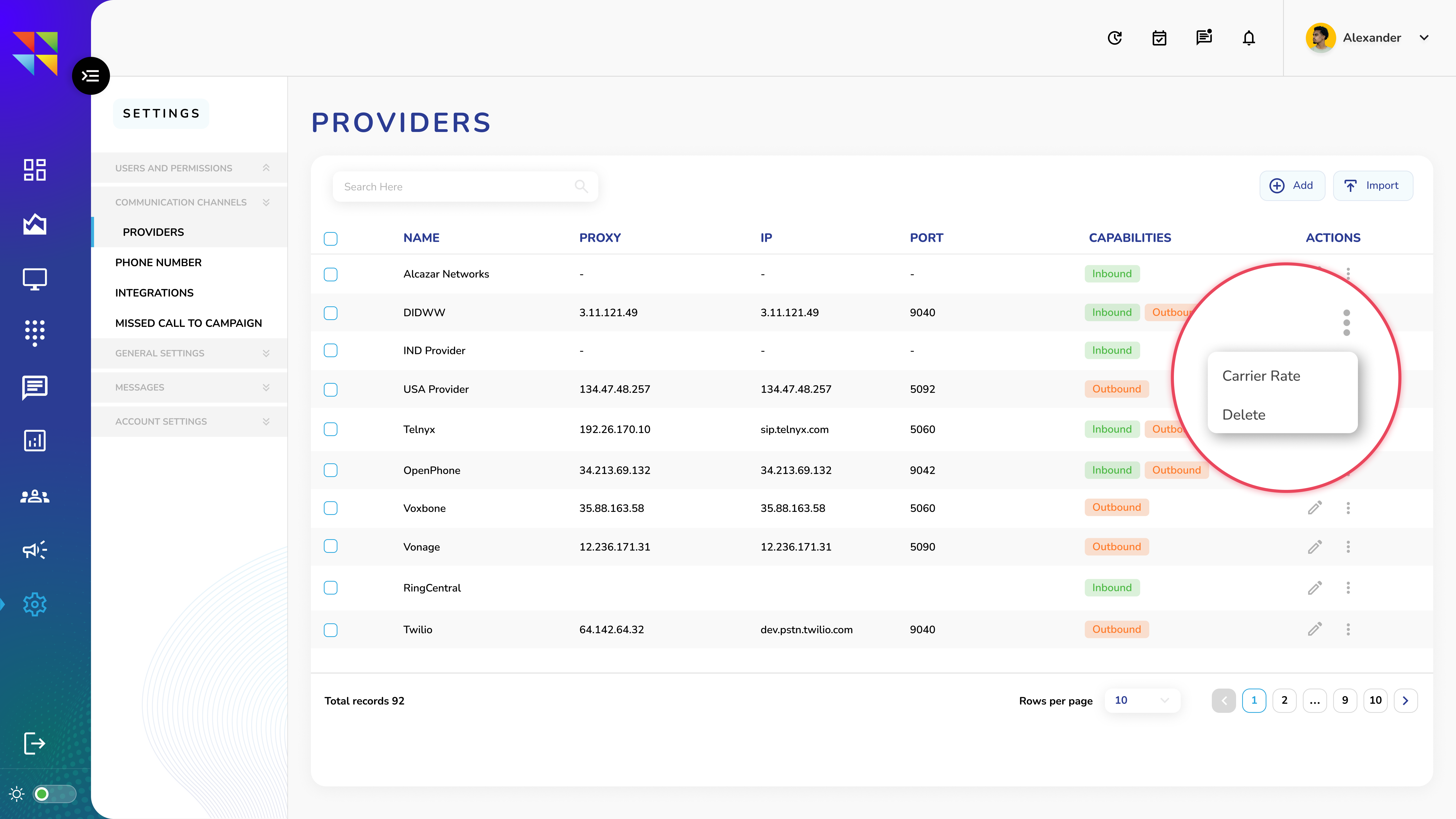
4. Click three dots (⋮) menu on any provider
5. Select "Carrier Rate" option to access the Carrier Rate's details.
View Carrier Rates List
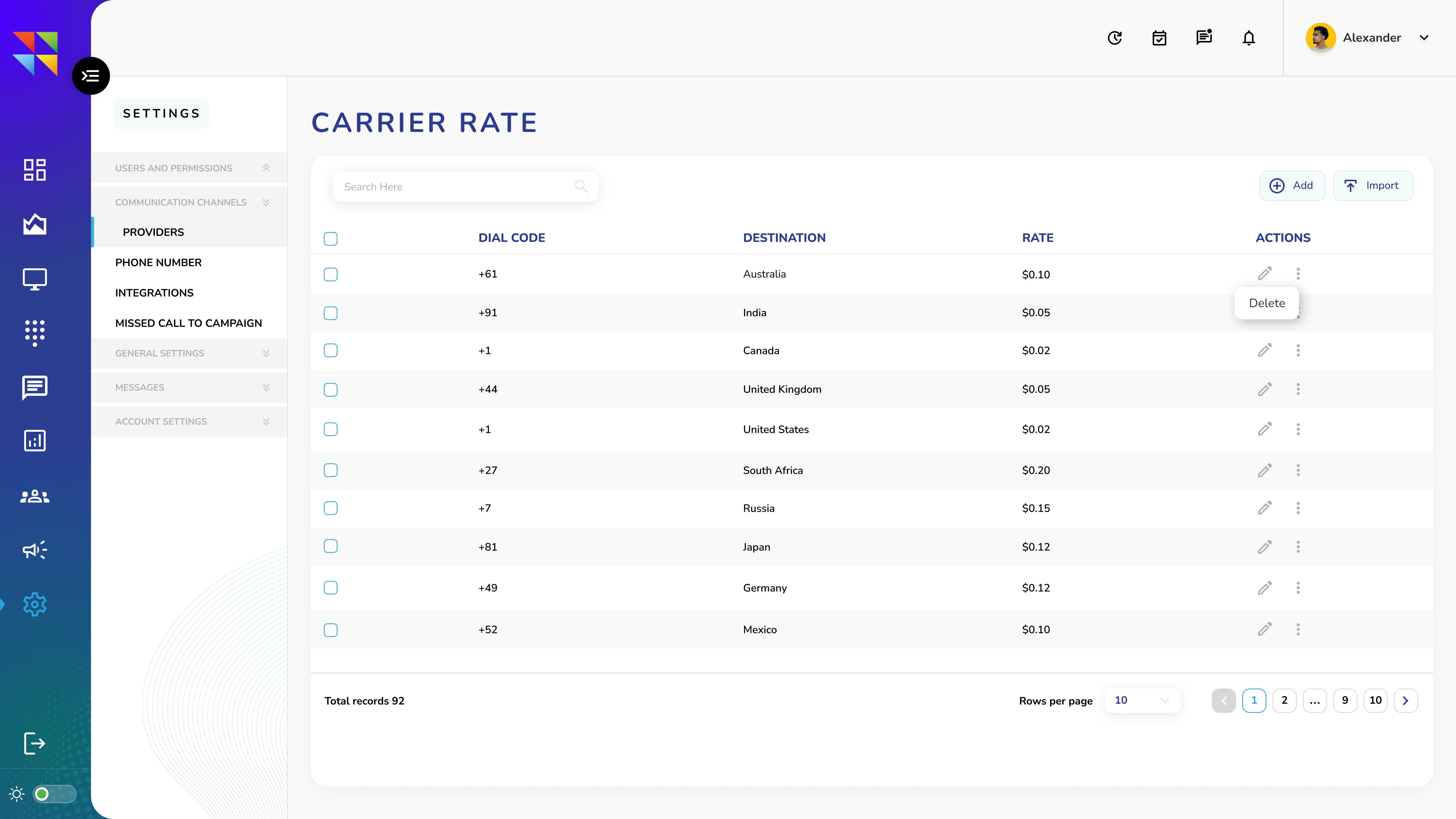
| Column | Description |
|---|---|
| Dial Code | Country/region calling code |
| Destination | Country/location name |
| Rate | Cost per minute |
| Actions | Edit/Delete options |
Available Actions
1. Edit Rate (Pencil Icon)
a. Modify current carrier rate
b. Update rate for specific destination
2. Options Menu (Three Dots)
a. Delete: Remove rate entry
3. Adding New Carrier Rate
a. Click "+Add" button
4. Bulk Import Rates
a. Click "Import" button
b. Two options available:
i. Download sample CSV template
ii. Upload completed CSV file
Important Notes:
- Verify rates before saving
- CSV must match template format
- Existing rates can be modified anytime
- Keep rate information up to date
- Review imported data for accuracy
Use bulk import for multiple rate updates to save time.
Add New Carrier Rate Guide
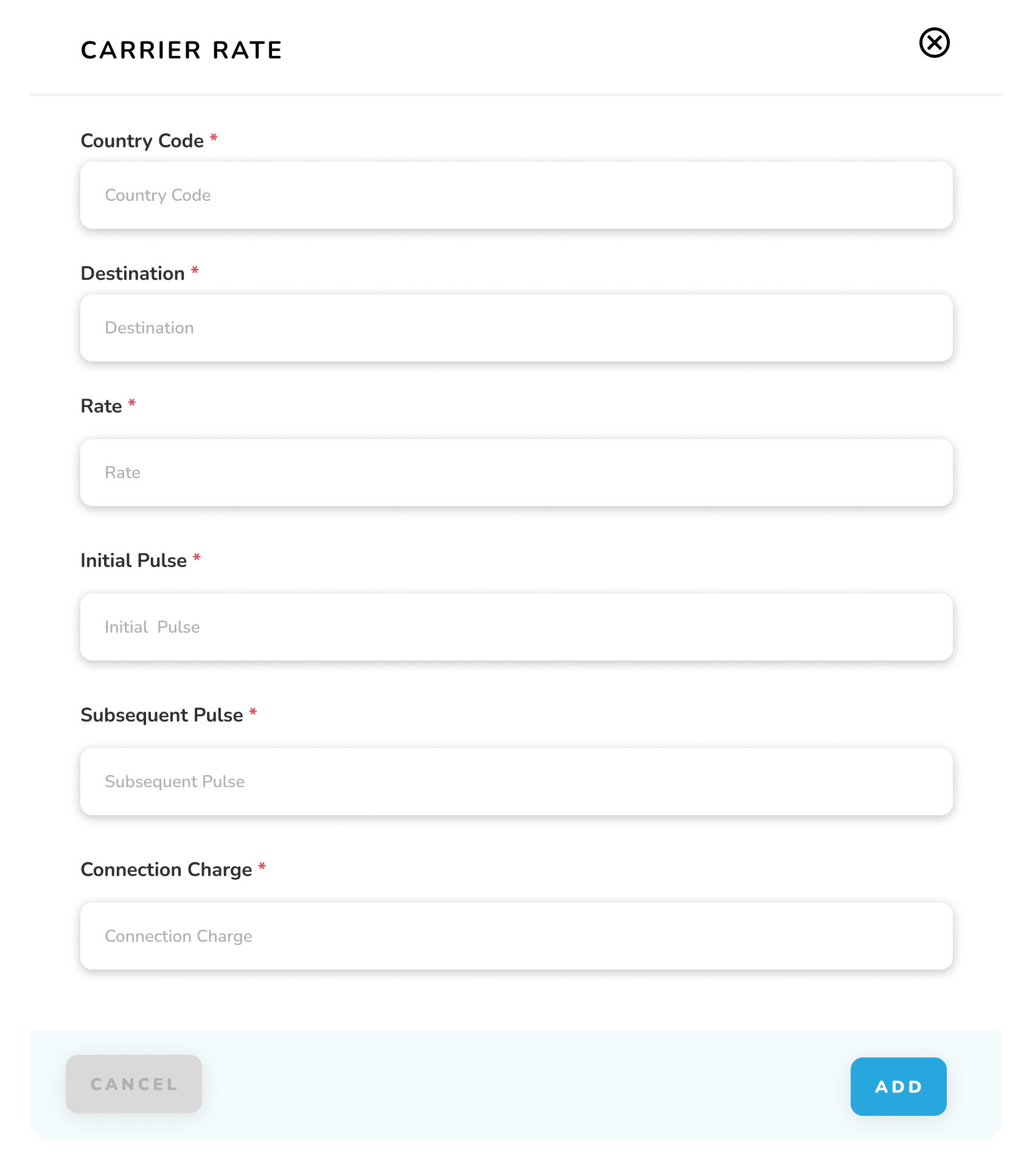
1. Access Carrier Rate Creation
a. Click "+Add" button (top right)
2. New Carrier Rate Form Fields
| Field | Description | Required |
|---|---|---|
| Country Code* | International dialing code (e.g., 1 for USA) | Yes |
| Destination* | Country/location name | Yes |
| Rate* | Cost per minute | Yes |
| Initial Pulse* | First billing interval in seconds | Yes |
| Subsequent Pulse* | Following billing intervals in seconds | Yes |
| Connection Charge* | One-time fee per call | Yes |
3. Steps to Add Rate
a. Fill in all required fields marked with *
b. Verify information accuracy
c. Click "ADD" button to save
d. Click "CANCEL" to discard changes
Important Notes:
-
All fields marked with * are mandatory
-
Country code must be numeric
-
Rate should be in decimal format
-
Pulse values are in seconds
-
Connection charge is a one-time fee
-
Double-check rates before saving