Holiday Group
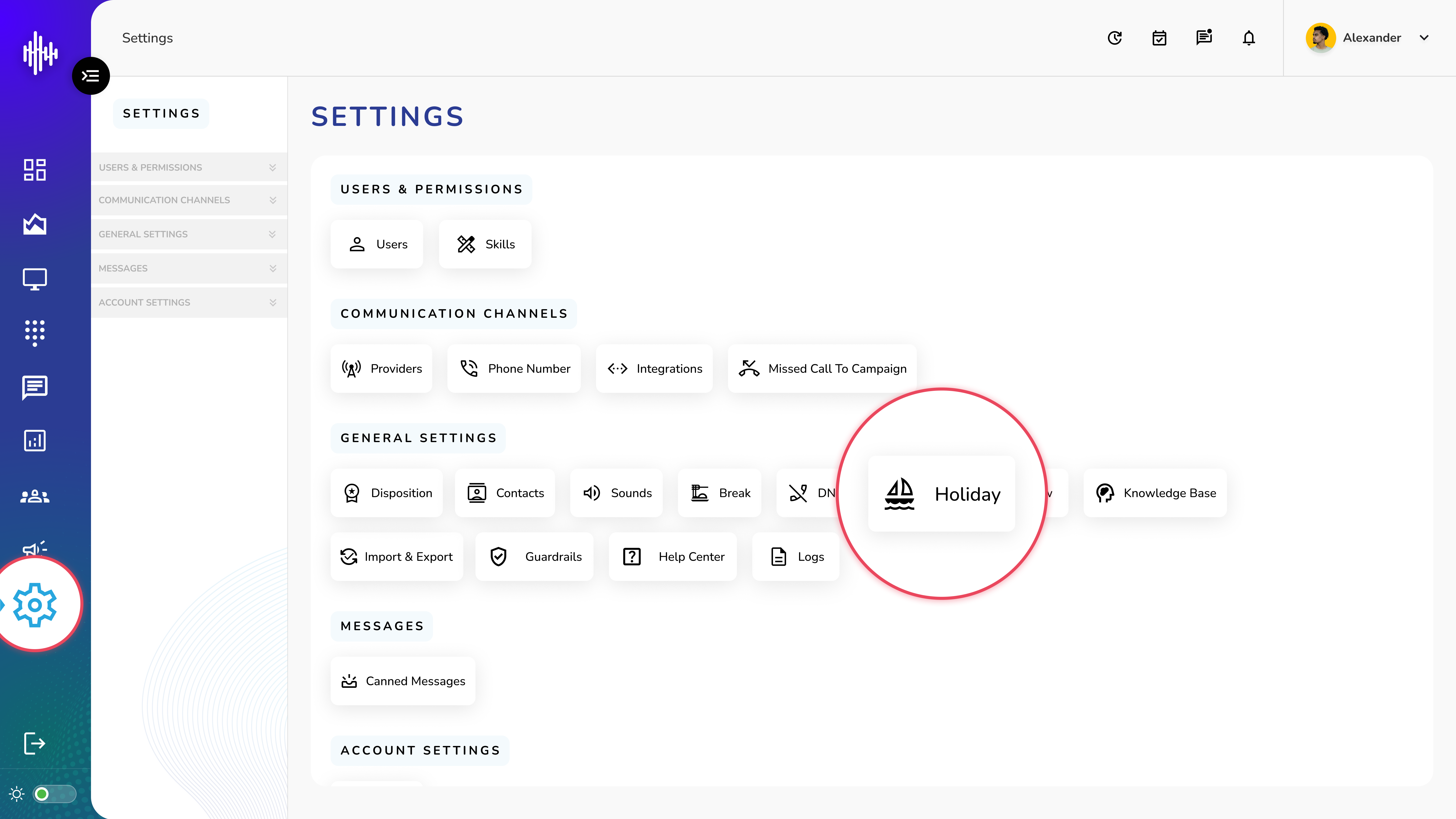
1. Login to your admin account
2. Click "Settings" from the left side menu
3. Click “Holiday” to access the Holiday Group's details.
Holiday Group Management
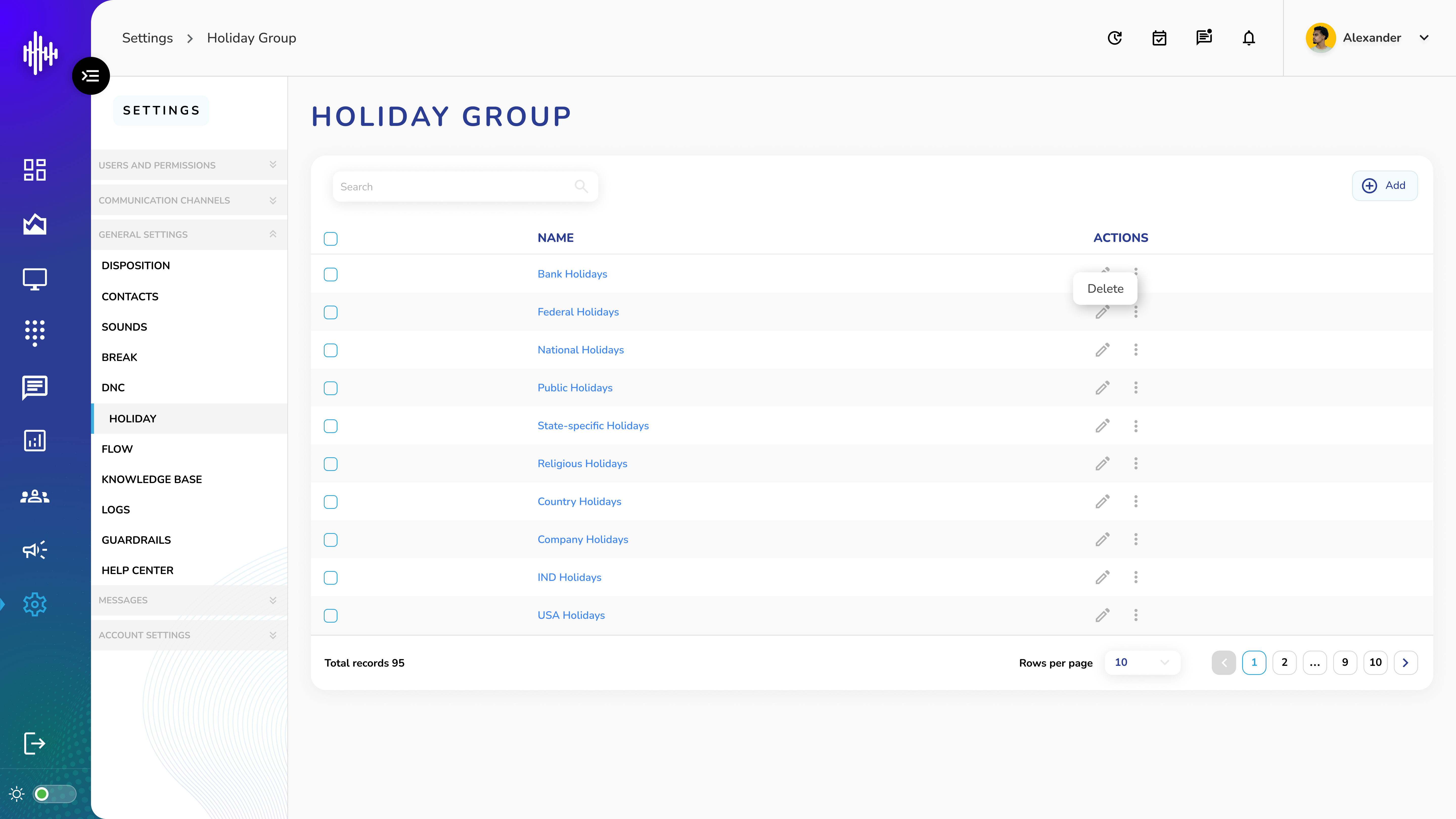
1. Holiday Group Screen Elements
a. Search Bar (Left side)
i. Filter holiday groups by name
b. Actions Per Group
i. Pencil Icon: Edit holiday group
ii. Three Dots: Delete holiday group
2. Top Bar Features
a. "+Add" button: Create new holiday group
3. Navigation
a. Adjustable rows per page
b. Pagination controls at bottom
c. Total records counter
Important Notes:
-
Groups organize related holidays
-
Check existing groups before creating new ones
-
Verify before deleting groups
-
Groups can contain multiple holidays
Create a new Holiday Group Guide
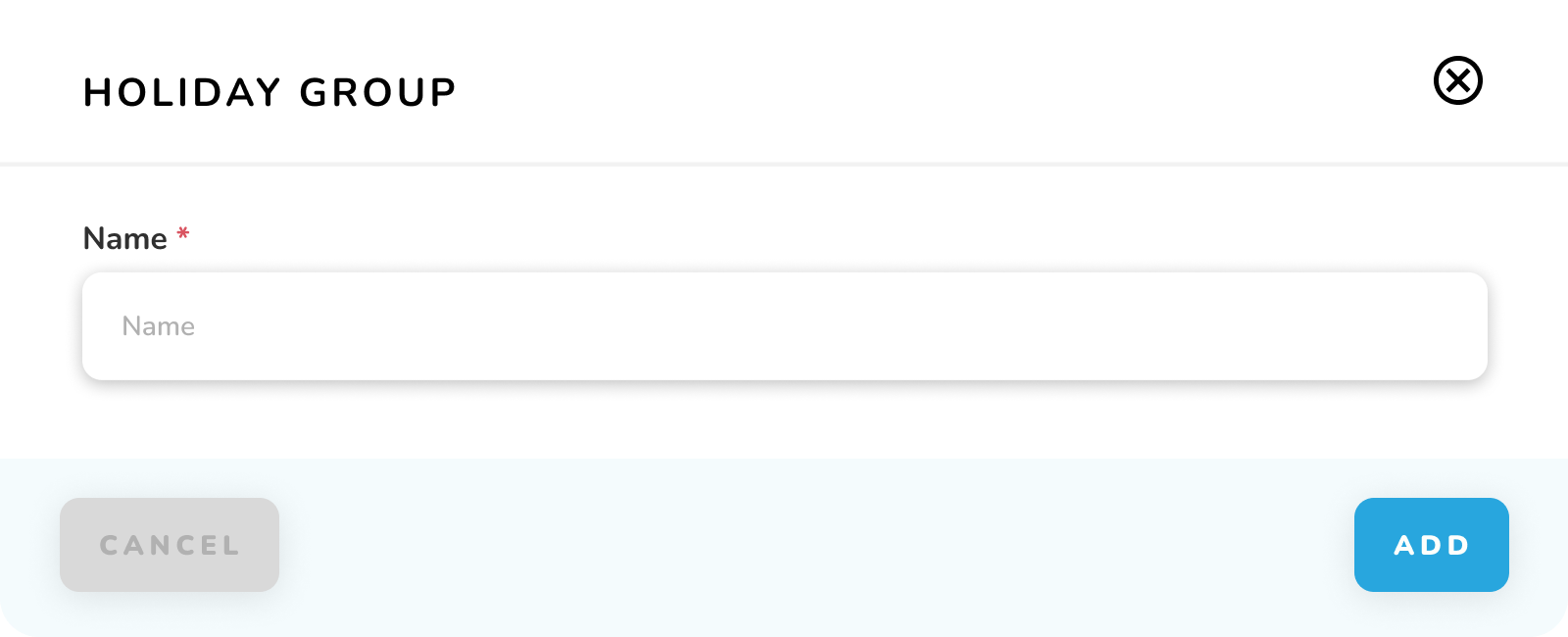
1. Required Field
| Field | Description | Required |
|---|---|---|
| Name* | Holiday group identifier | Yes |
2. Steps to Add Holiday Group
a. Click "+Add" button
b. Enter group name
i. Use clear, descriptive names
ii. Examples:
1. Bank Holidays
2. Religious Holidays
3. Company Holidays
3. Viewing Holiday Group Details
a. Click on any Holiday Group Name (e.g., "Public Holidays")
b. System displays detailed list of Holiday for selected category
4. Action Buttons
a. "CANCEL": Exit without saving
b. "ADD": Create new holiday group
Important Notes:
-
Field marked with * is mandatory
-
Group name must be unique
-
Choose descriptive names for easy identification
-
Holidays can be added to group after creation