DNC (Do Not Call)
Access DNC Settings
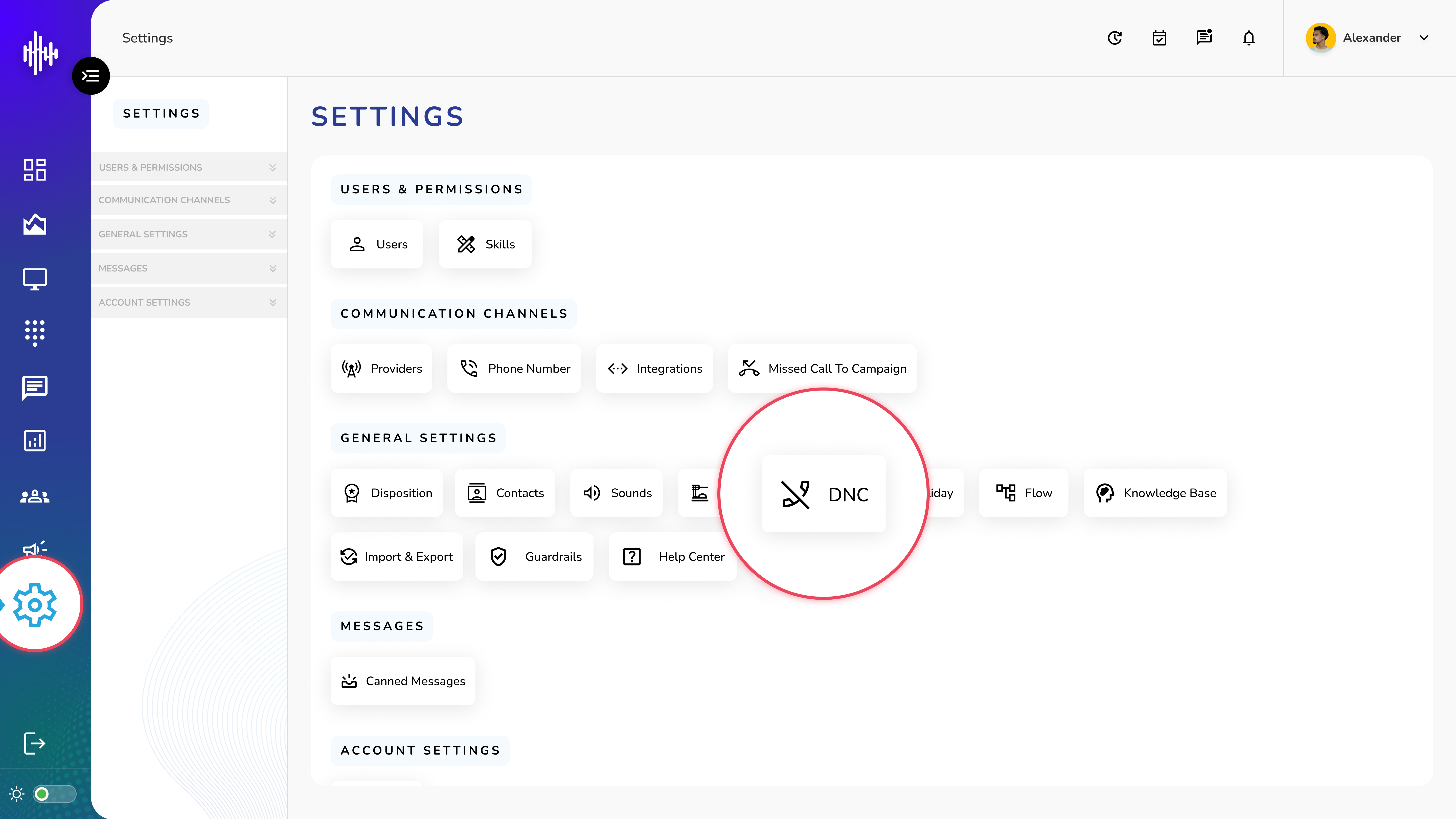
1. Login to your admin account
2. Click "Settings" from the left side menu
3. Click “DNC” to access the DNC's details.
DNC Management
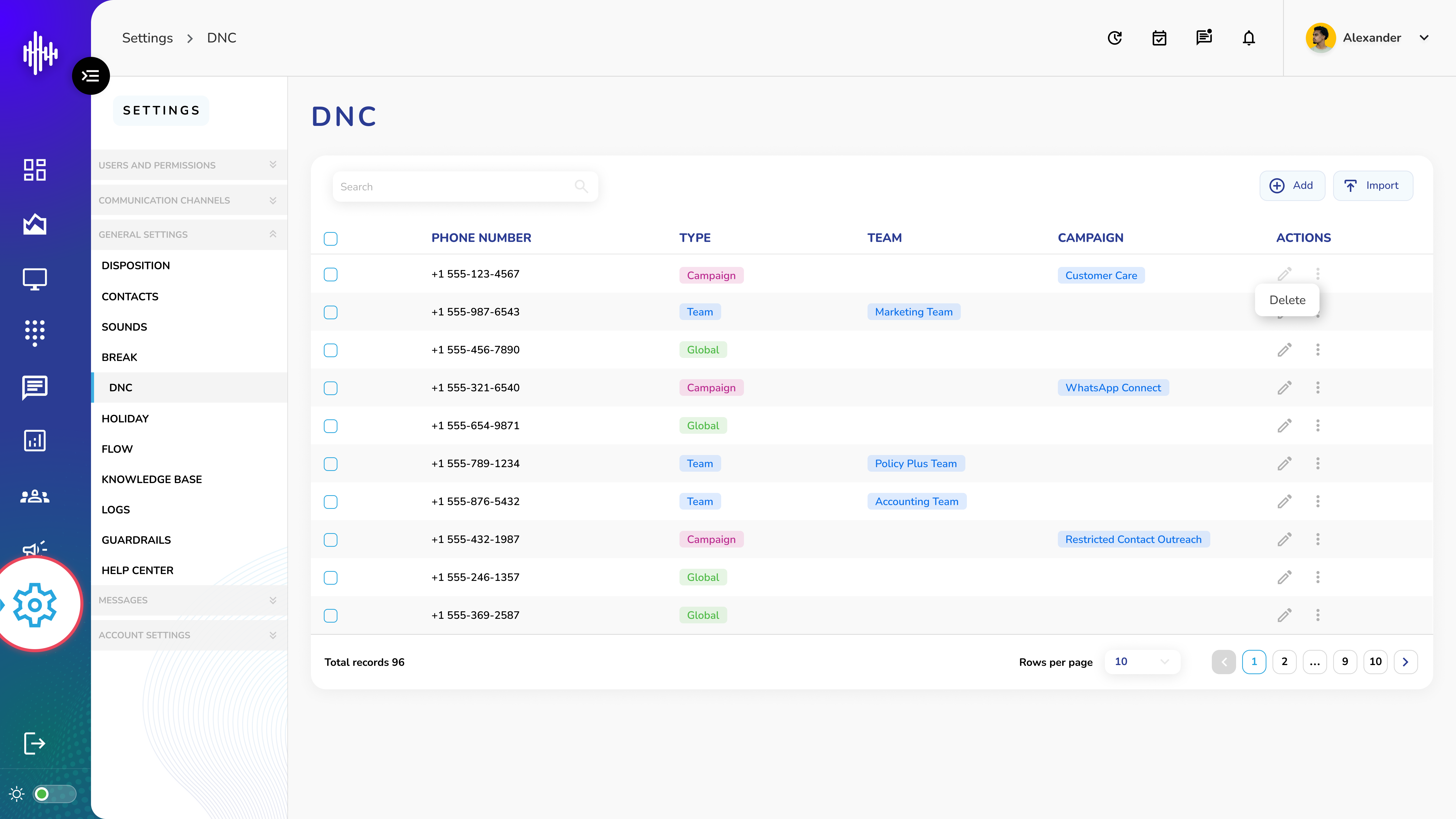
1. Screen Elements
a. Search Bar (Left side)
i. Filter DNC numbers
b. DNC List Display
| Column | Description |
|---|---|
| Phone Number | Contact number on DNC list |
| Type | DNC level (Global/Campaign/Team) |
c. Types of DNC
i. Global: Blocked across all campaigns
ii. Campaign: Blocked for specific campaign
iii. Team: Blocked for specific team
d. Actions Per Entry
i. Pencil Icon: Edit DNC entry
ii. Three Dots: Delete entry
2. Top Bar Features
a. "+Add" button: Add new DNC number
b. Import" button: Bulk import DNC numbers
3. Navigation
a. Adjustable rows per page
b. Pagination controls at bottom
c. Total records counter
Important Notes:
-
Global DNC applies system-wide
-
Verify DNC type before adding
-
Check existing entries before import
-
Regular DNC list maintenance recommended
Create a new DNC (Do Not Call)
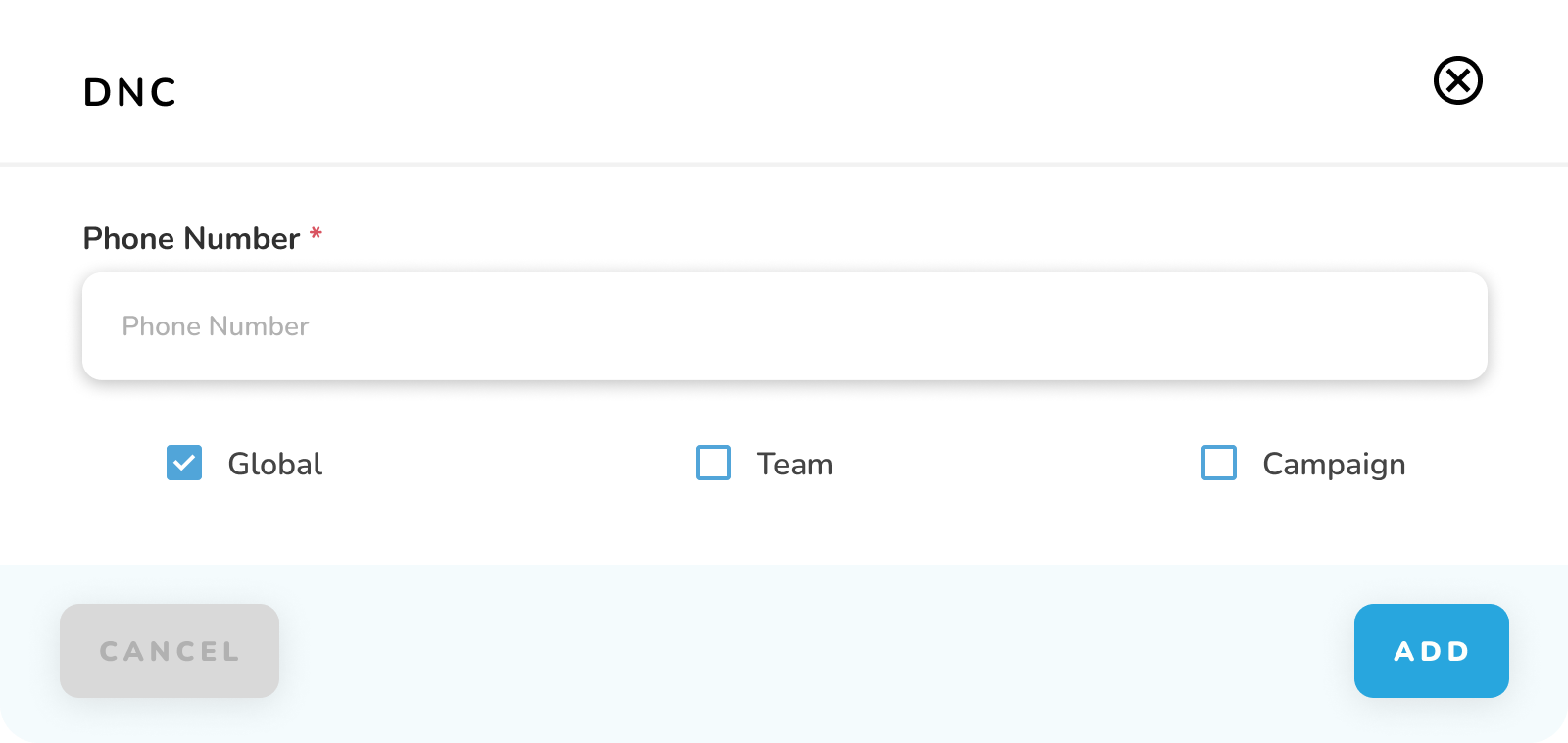
1. Required Information
| Field | Description | Required |
|---|---|---|
| Phone Number* | Number to add to DNC list | Yes |
| DNC Type | Select one: Global/Team/Campaign | Yes |
2. DNC Type Options
a. Global
i. Blocks number across entire system
ii. Applies to all campaigns and teams
b. Team
i. Blocks number for specific team
ii. Only affects selected team's calls
c. Campaign
i. Blocks number for specific campaign
ii. Only affects selected campaign's calls
3. Steps to Add DNC
a. Enter phone number
b. Select DNC type (only one can be selected)
c. Click "ADD" to save entry
4. Buttons
a. "CANCEL": Exit without saving
b. "ADD": Save new DNC entry
Important Notes:
-
Phone number is mandatory
-
Must select one DNC type
-
Cannot select multiple types
-
Verify number before adding
-
Check existing DNC entries to avoid duplicates