WhatsApp Template
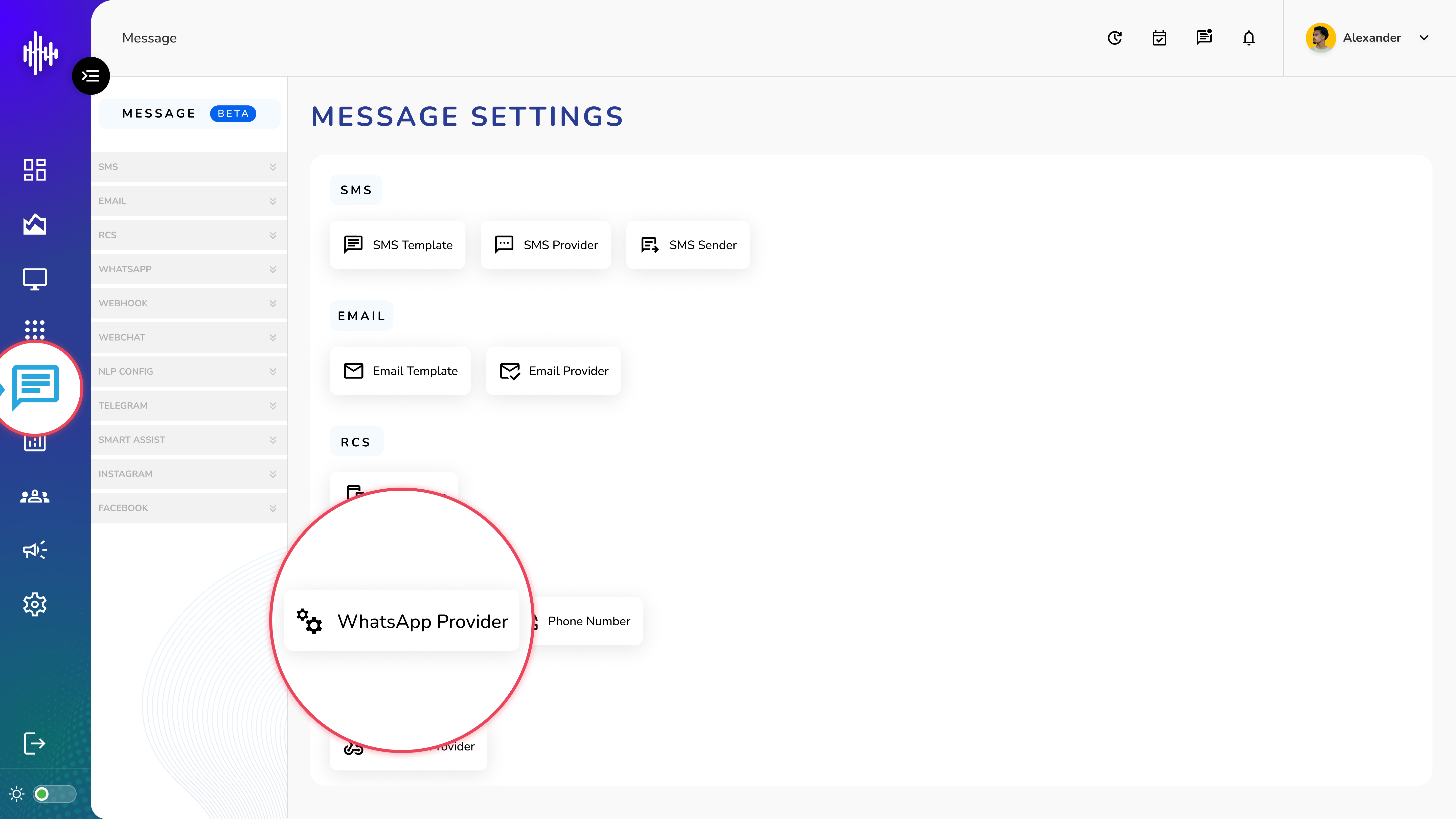
1. Login to your admin account
2. Click "Message" from the left side menu
3. Click “WhatsApp Provider” to access the WhatsApp Provider's details.
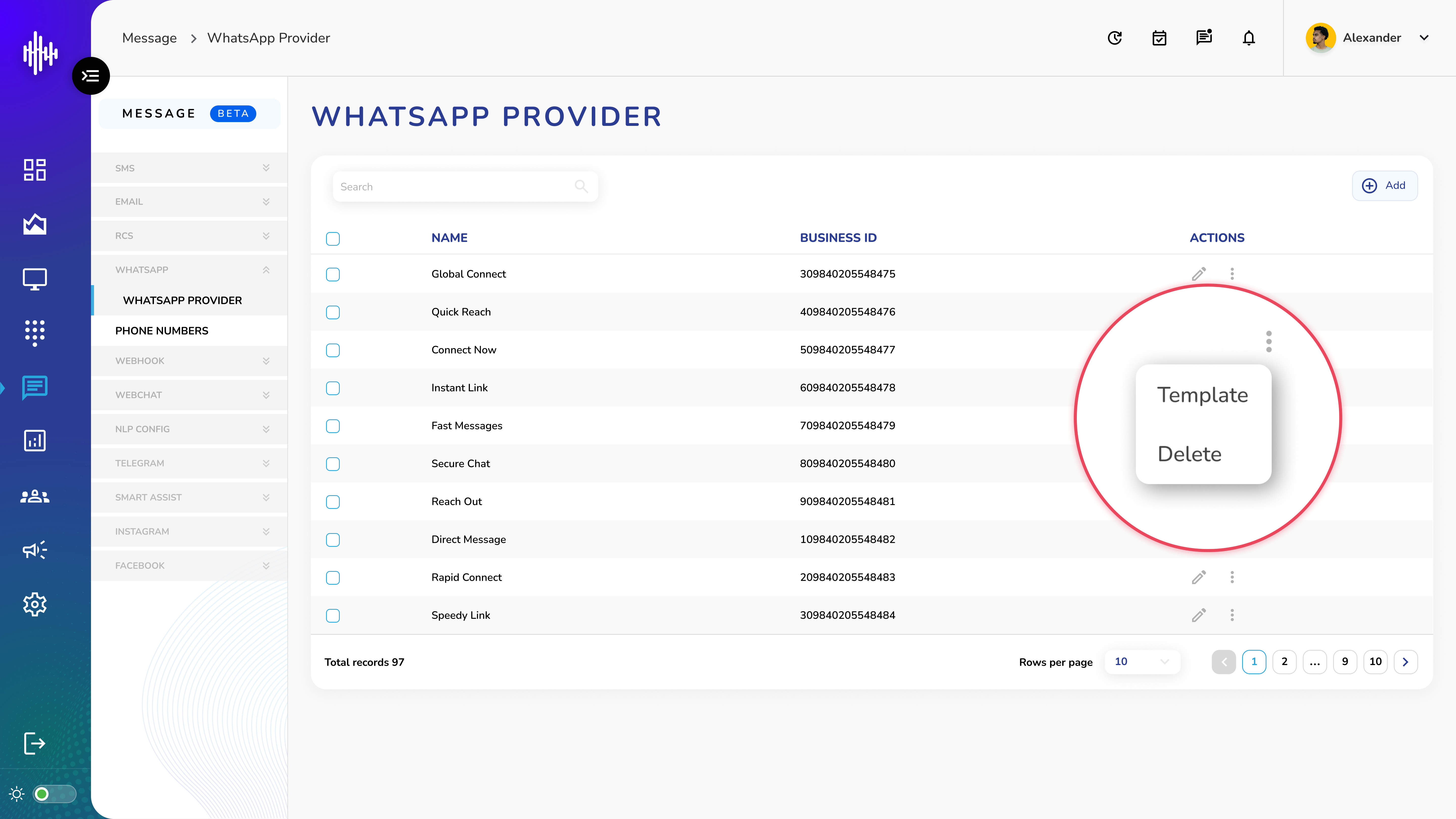
4. Click 3 dot to access the Options
5. Click “Template” to access the WhatsApp Template's details.
WhatsApp Template Management Guide
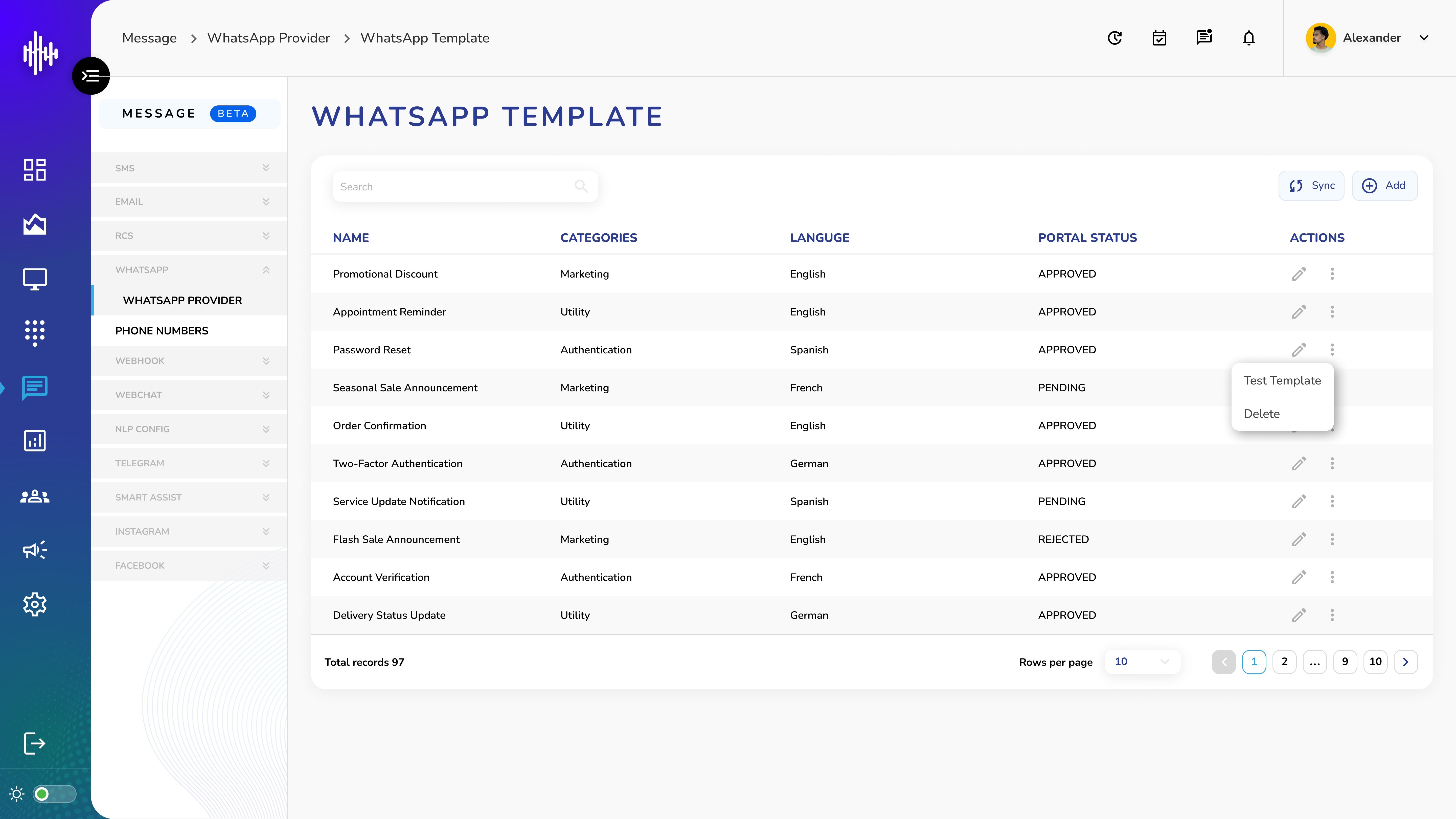
1. Template List Screen
| Column | Description |
|---|---|
| Name | Template identifier |
| Categories | Template type (Marketing/Utility/Authentication) |
| Language | Template language |
| Portal Status | APPROVED/PENDING/REJECTED |
2. Top Bar Features
a. Sync Button
i. Syncs old templates
ii. Shows confirmation popup
iii. Toggle to include old templates
iv. CONFIRM/CANCEL options
b. Add Button
i. Creates new template
3. Template Actions
a. Pencil Icon
i. Edit template configuration
ii. Three Dots Menu
b. Test Template: Opens test popup
i. Delete: Remove template
4. Test Template Popup
| Field | Description | Required |
|---|---|---|
| Contact Number* | Recipient's number | Yes |
| Number* | Select test number | Yes |
a. Action Buttons:
i. CANCEL: Exit popup
ii. SUBMIT: Send test message
5. Portal Status Types
a. APPROVED: Ready for use
b. PENDING: Under review
c. REJECTED: Not approved
Important Notes:
-
Verify template status before use
-
Test templates before deployment
-
Keep templates updated
-
Regular sync recommended
Create WhatsApp Template Guide
1. Required Fields
| Field | Description | Required | Character Limit |
|---|---|---|---|
| Template Name* | Unique identifier | Yes | 512 |
| Language* | Template language | Yes | - |
| Categories* | Marketing / Utility / Authentication | Yes | - |
| Body* | Main message content | Yes | 1024 |
2. Optional Fields
| Field | Description | Character Limit |
|---|---|---|
| Header | None / Text / Media | - |
| Footer | Bottom section text | 60 |
| Buttons | Interactive buttons | - |
3. Template Preview
a. Right panel shows live preview
b. Updates as you type
c. Shows character count
4. Message Components
a. Header Options
i. None
ii. Text
iii. Media
b. Body Text
i. Main message content
ii. Support variables
iii. Multi-language support
c. Button Types
i. Call to Action
ii. Quick Reply
iii. URL
5. Action Buttons
a. CANCEL: Exit without saving
b. ADD: Create template
Important Notes:
-
Stay within character limits
-
Preview before saving
-
Follow WhatsApp guidelines
-
Test template after creation