WhatsApp Phone Number
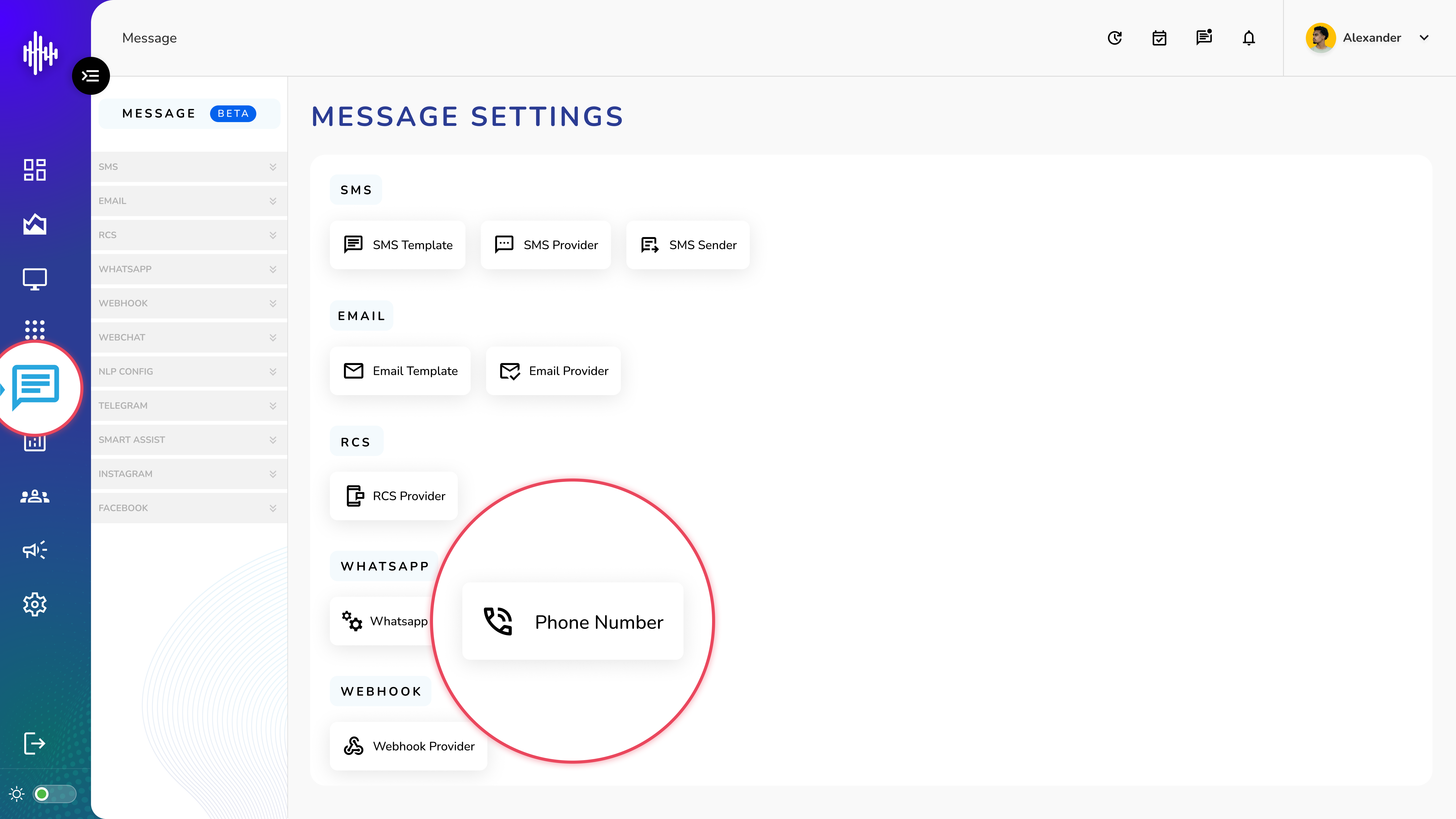
1. Login to your admin account
2. Click "Message" from the left side menu
3. Click “Phone Number” to access the WhatsApp Phone Number's details.
WhatsApp Phone Number Management Guide
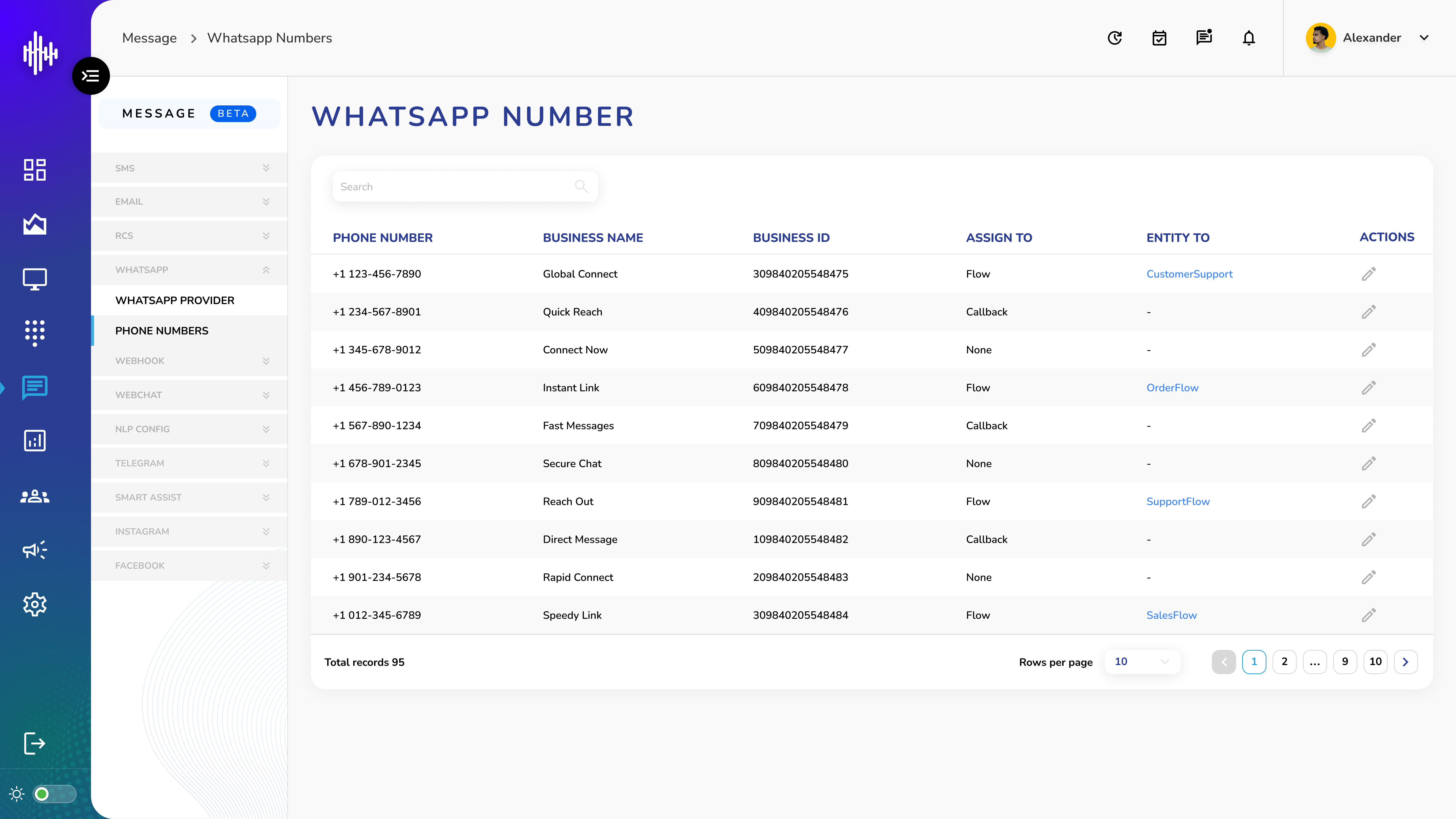
1. WhatsApp Phone Number Screen Elements
| Column | Description |
|---|---|
| Phone Number | WhatsApp business number |
| Business Name | Associated business name |
| Business ID | Unique business identifier |
| Assign To | None/Callback/Flow |
| Entity To | Associated flow name |
2. List Features
a. Search Bar
i. Filter numbers and businesses
ii. Quick access to specific entries
b. Assignment Types
i. None: No routing
ii. Callback: Route to callback
iii. Flow: Route to specific flow
c. Actions
i. Pencil Icon: Edit number configuration
3. Navigation
a. Adjustable rows per page
b. Pagination controls
c. Total records counter
Important Notes:
-
Phone numbers must be valid
-
Business ID must match WhatsApp account
-
Flow must be configured for routing
-
Verify all assignments
Edit WhatsApp Number Guide
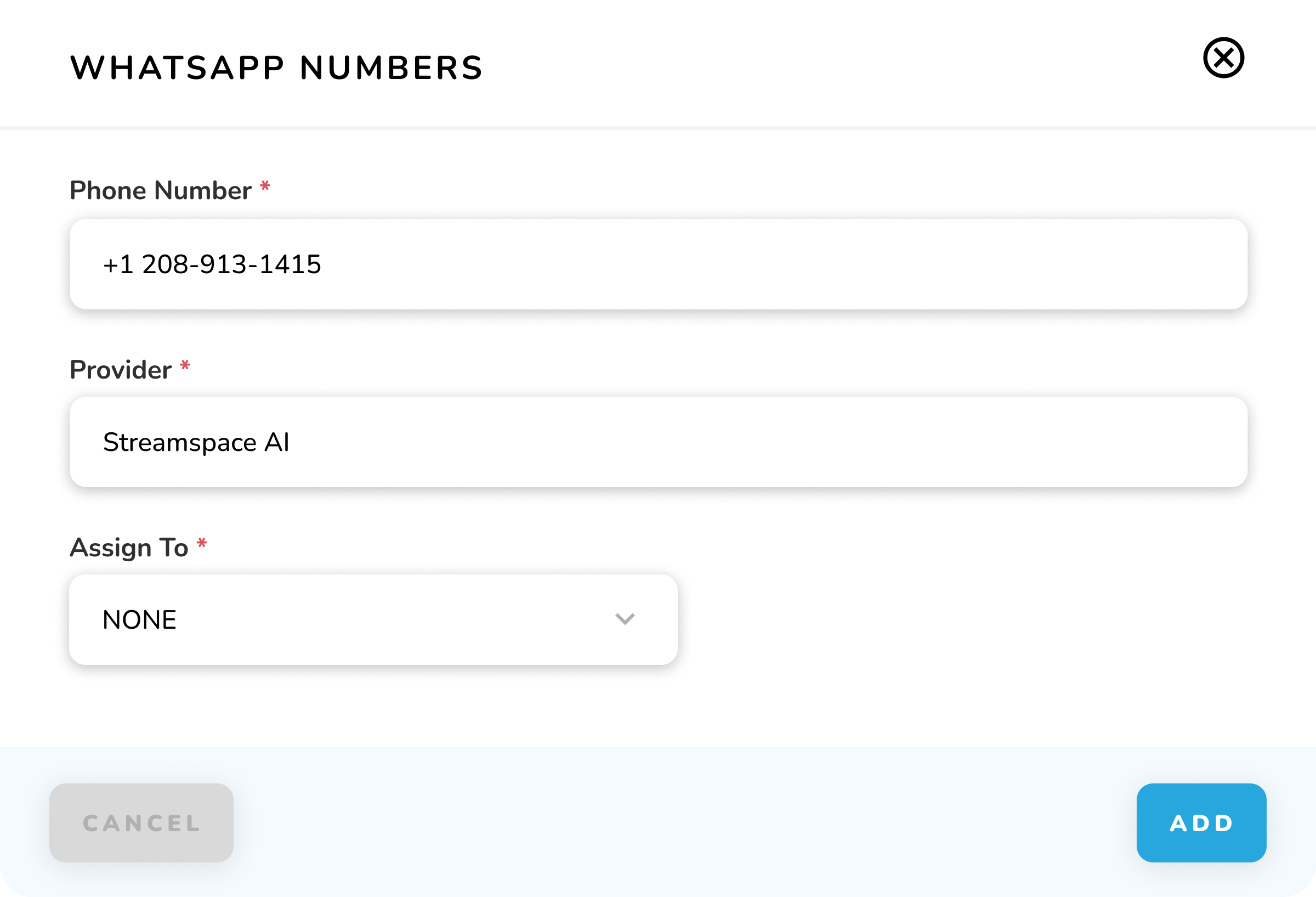
1. Edit Configuration Popup
| Field | Description | Editable |
|---|---|---|
| Phone Number | WhatsApp number | No |
| Provider | Service provider | No |
| Assign To* | Routing option | Yes |
2. Assignment Options
a. None
i. No routing configured
ii. Messages not forwarded
b. Callback
i. Routes to callback URL
ii. Additional fields appear:
1. Method (GET/POST/PUT)
2. URL entry field
c. Flow
i. Routes to specific flow
ii. Flow selection dropdown appears
3. Action Buttons
a. CANCEL: Exit without saving
b. UPDATE: Save changes
Important Notes:
-
Only Assign To field can be modified
-
Other fields are display-only
-
Changes take effect immediately
-
Verify routing before saving