Email Provider
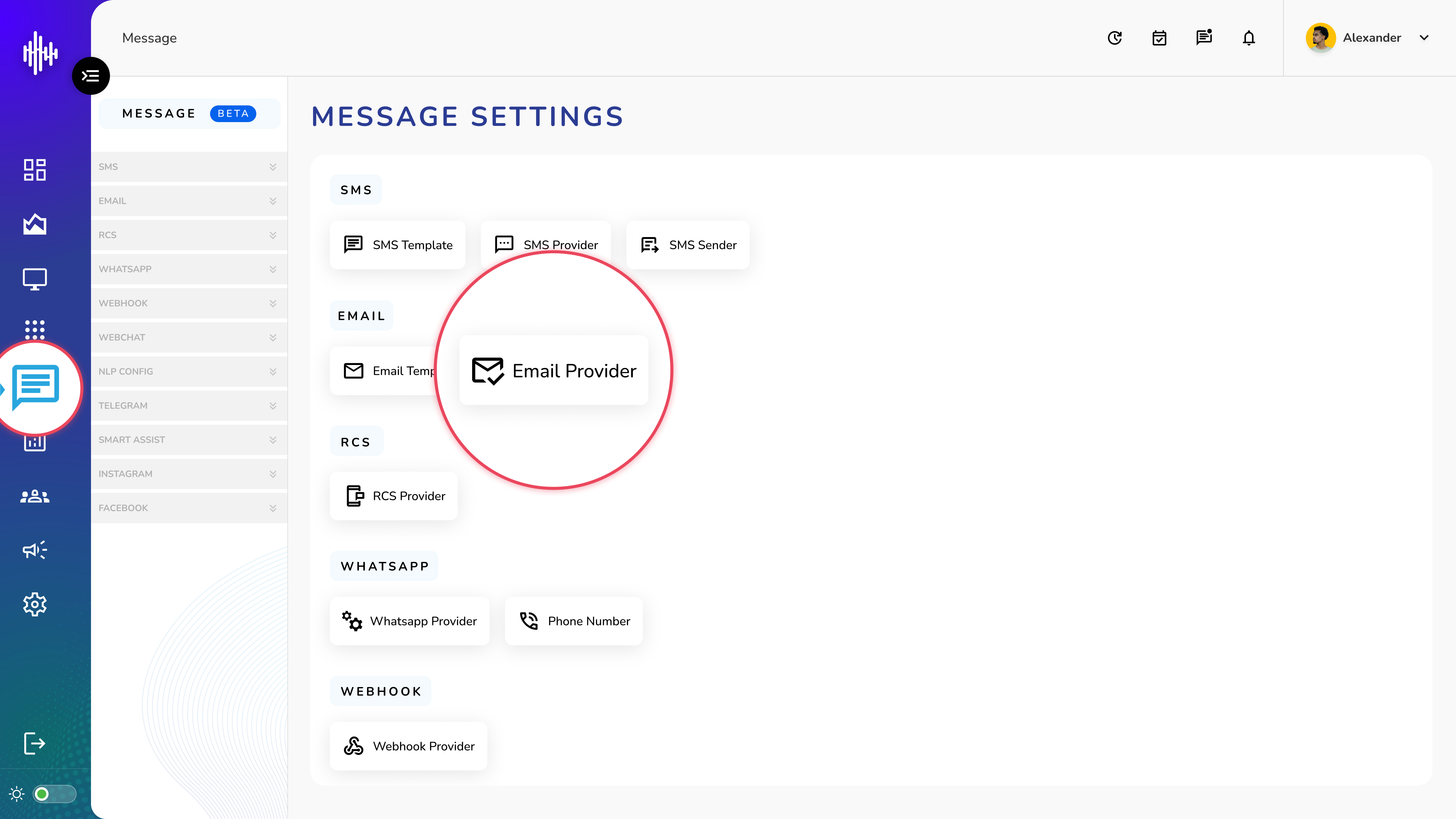
1. Login to your admin account
2. Click "Message" from the left side menu
3. Click “Email Provider” to access the Email Provider's details.
Email Provider Management
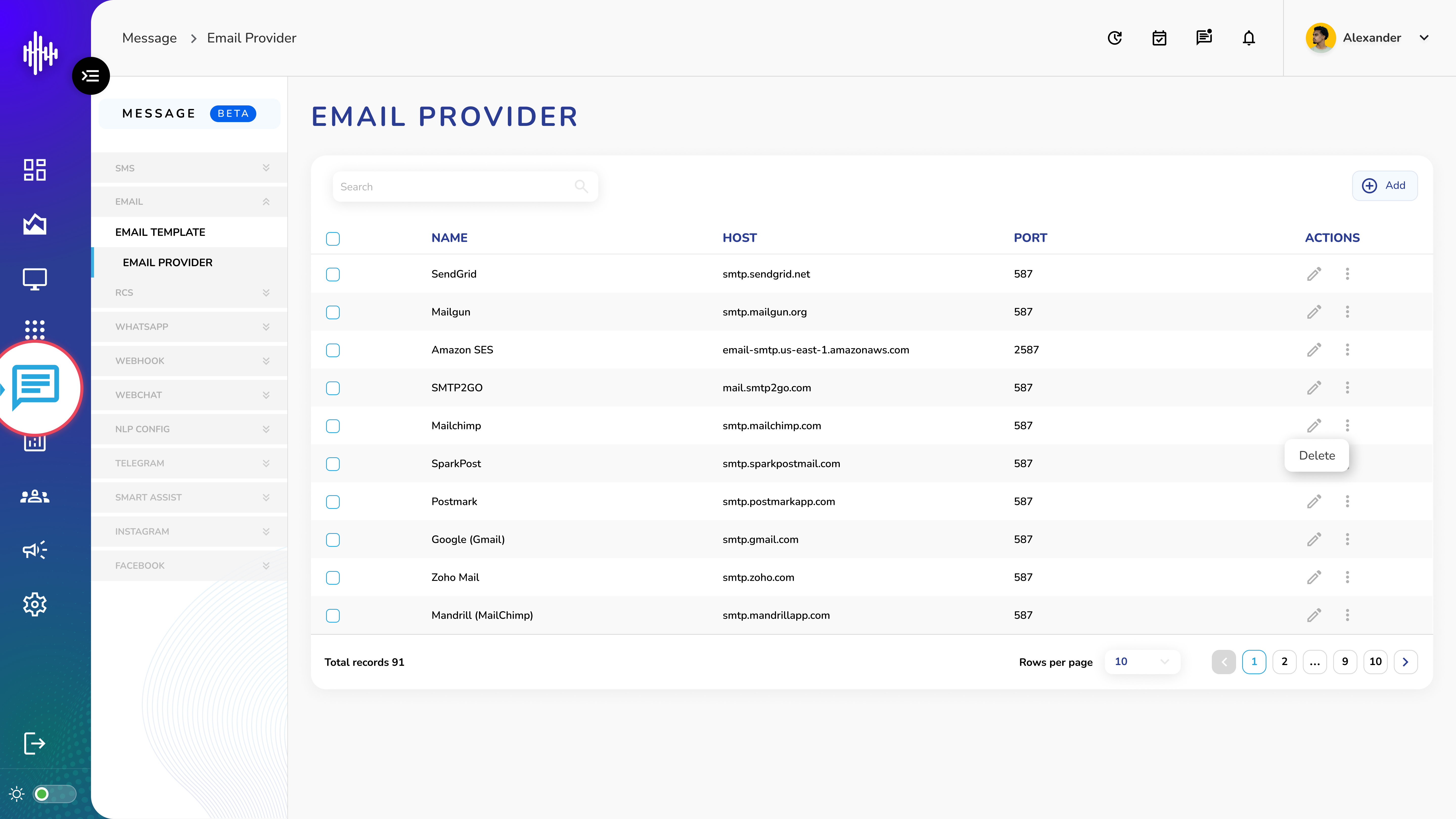
1. Email Provider Screen Elements
| Column | Description |
|---|---|
| Name | Provider identifier |
| Host | SMTP server address |
| Port | SMTP port number |
2. List Features
a. Top Bar
i. Search functionality
ii. "+Add" button for new providers
b. Available Actions
i. Pencil Icon: Edit configuration
ii. Three Dots: Delete provider
3. Navigation
a. Adjustable rows per page
b. Pagination controls
c. Total records counter
Important Notes:
-
Verify SMTP credentials
-
Test server connectivity
-
Monitor email delivery
-
Secure provider settings
Add Email Provider Guide
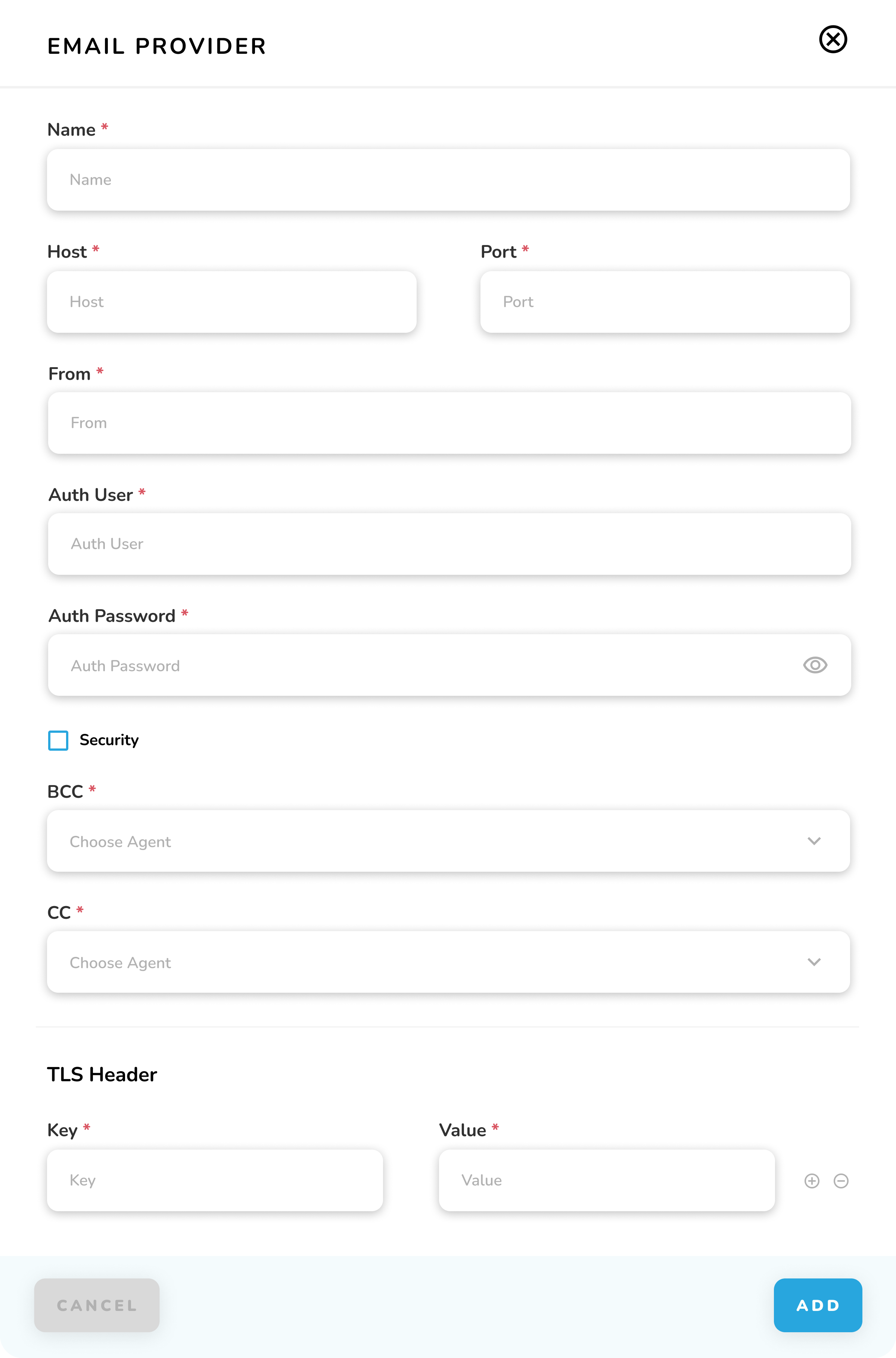
1. Required Fields
| Field | Required | Description |
|---|---|---|
| Name | * | Provider identifier |
| Host | * | SMTP server address |
| Port | * | SMTP port number |
| From | * | Sender email address |
| Auth User | * | SMTP username |
| Auth Password | * | SMTP password |
| BCC | * | Blind copy recipient |
| CC | * | Carbon copy recipient |
2. Optional Settings
a. Security: Enable SSL/TLS
b. TLS Header: Custom security headers
i. Key: Header name
ii. Value: Header content
3. Actions
a. CANCEL: Exit without saving
b. ADD: Create provider
Important Notes:
-
Verify SMTP credentials
-
Test email delivery
-
Use secure ports (587/465)
-
Enable SSL/TLS security
-
Keep credentials secure