CSR Call Management
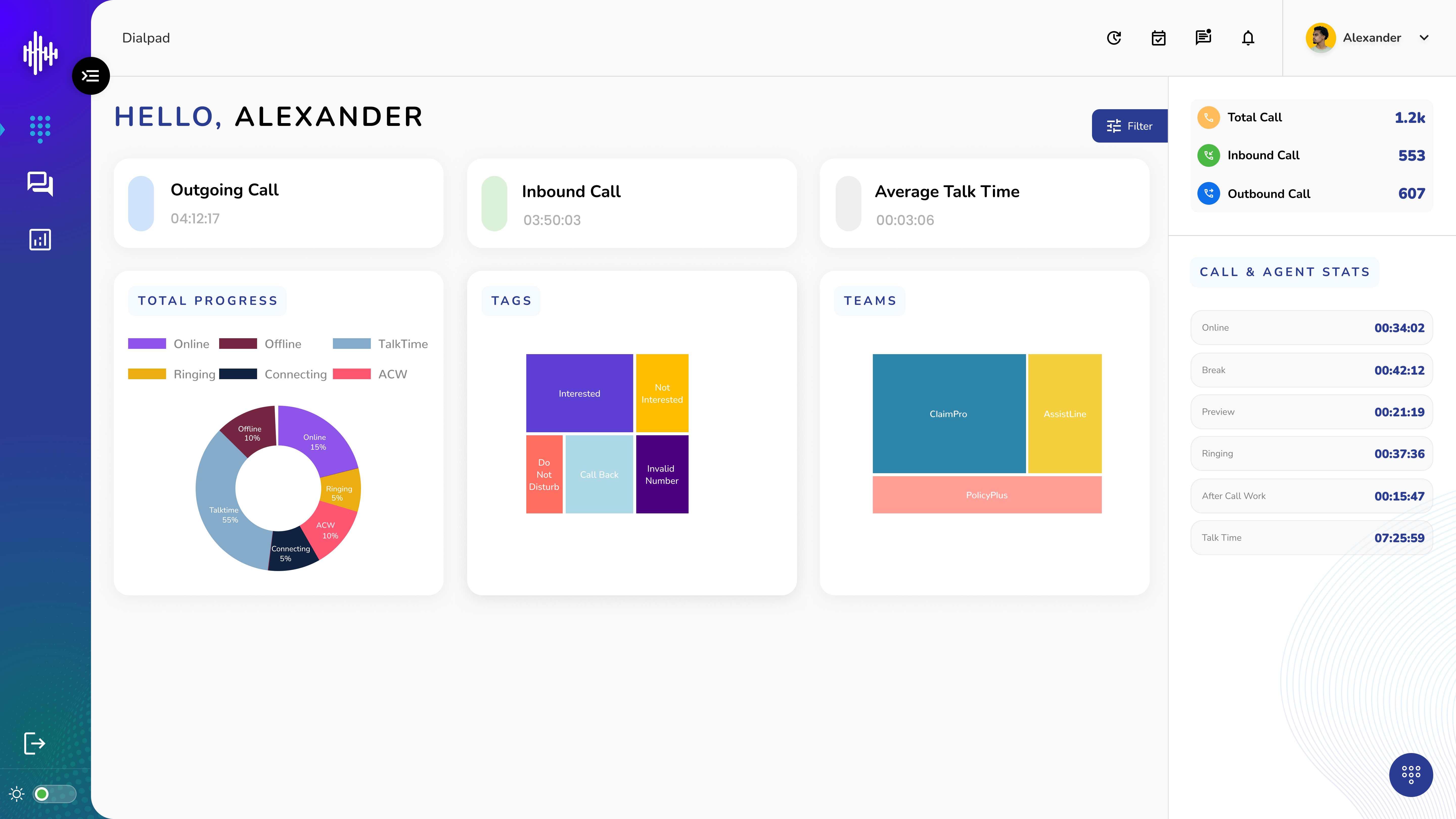
1. Access Call Controls
a. Locate keypad icon (bottom right of screen)
b. Click keypad icon to open call control popup
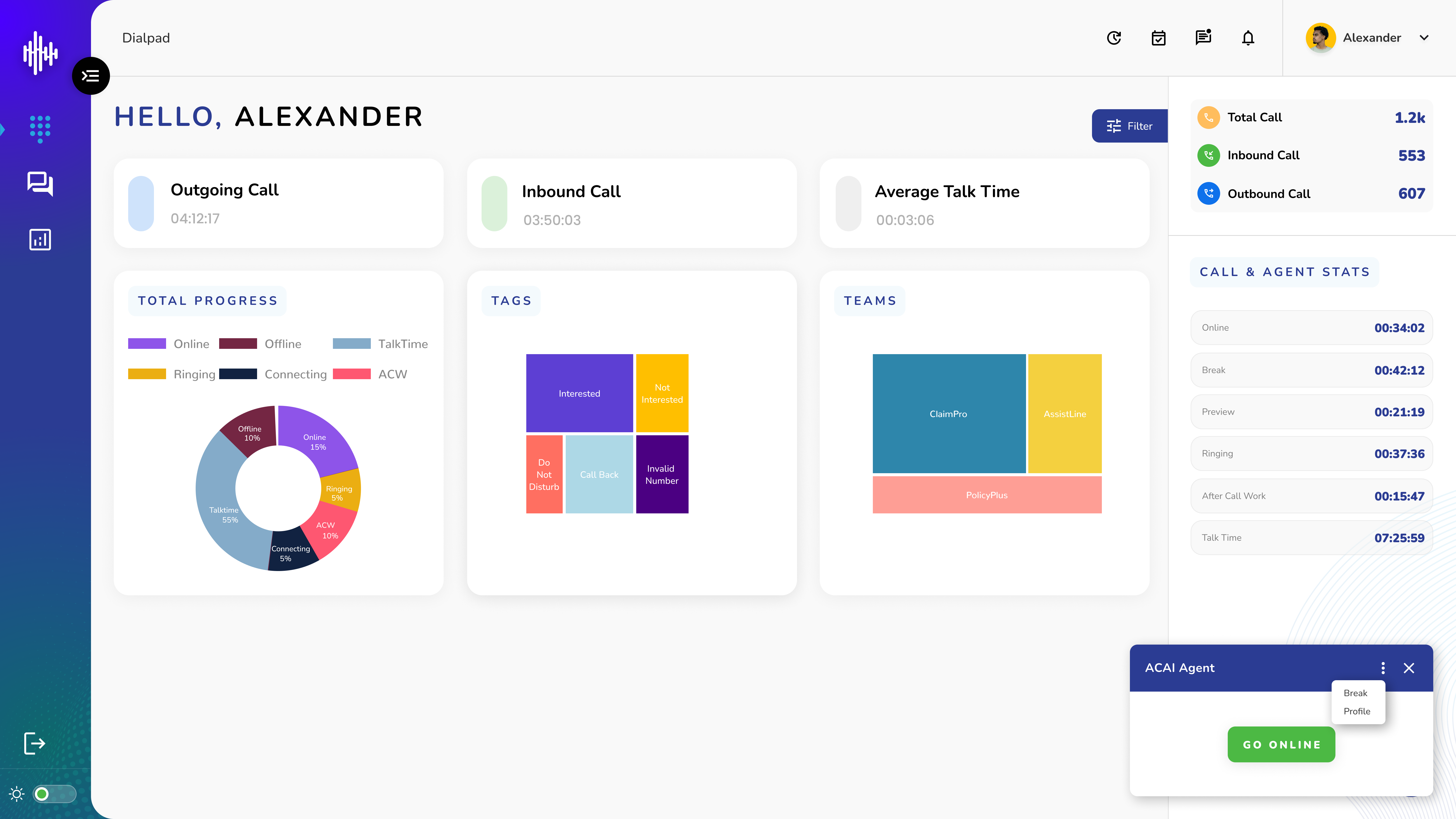
2. Call Control Popup Options
| Option | Description |
|---|---|
| Go Online | Green button to go online and activate call capabilities |
| Options (⋮) | Access additional features: |
| - Break: Set break status | |
| - Profile: View/edit profile settings |
3. Making Calls
a. Click keypad icon
b. Click "Go Online" (green button)
c. Wait for system to activate
d. Status will change to Online
e. Now you can make/receive calls
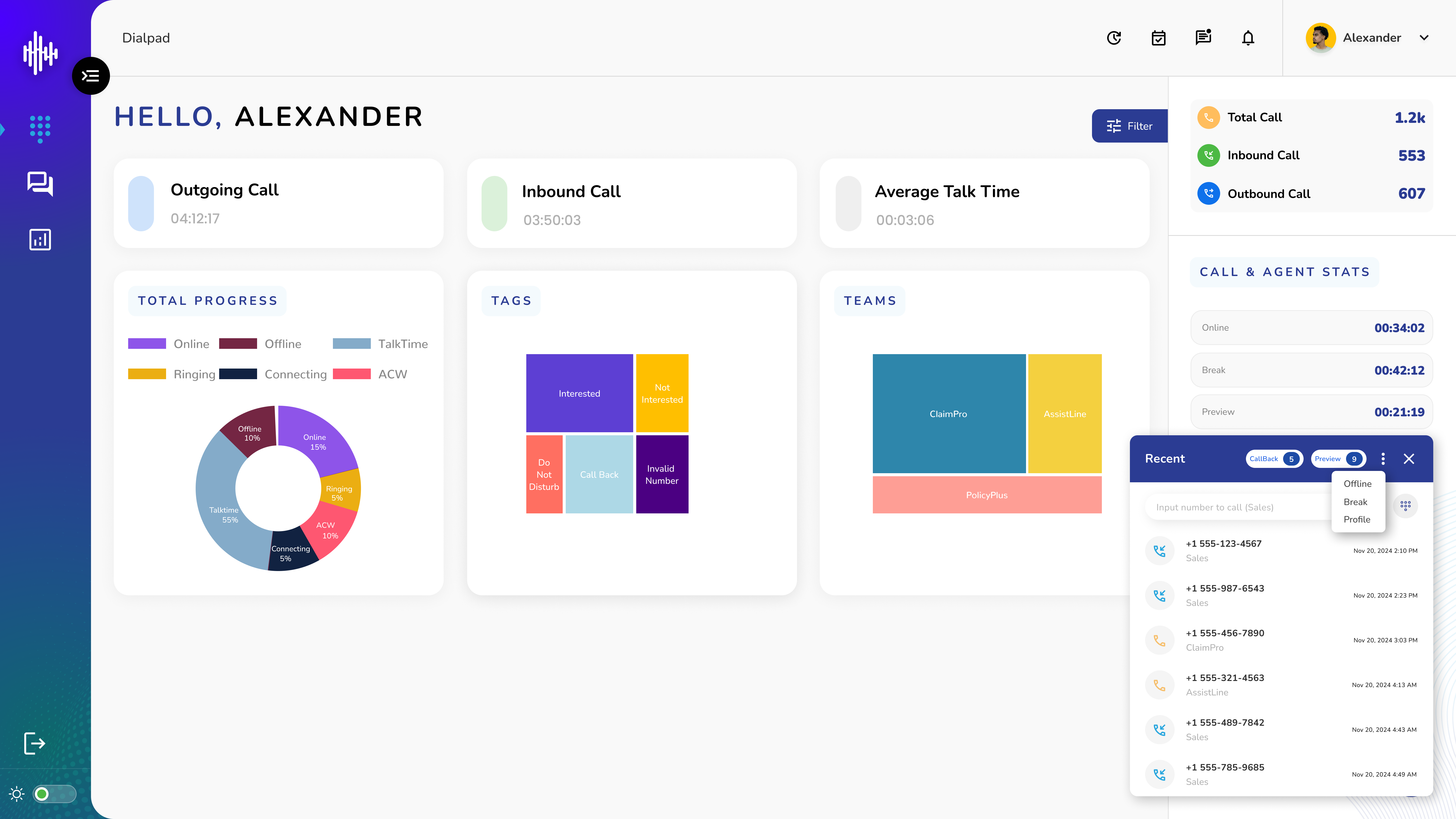
4. Break Management
a. Click keypad icon (bottom right)
b. Click three dots (⋮)
c. Select "Break"
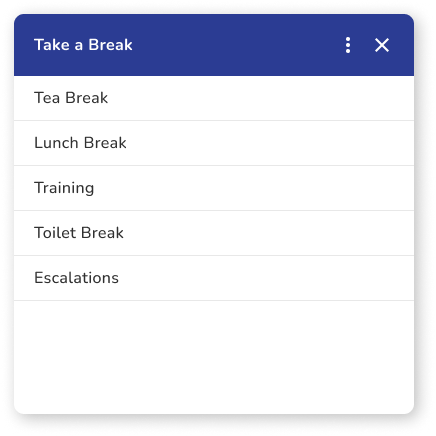
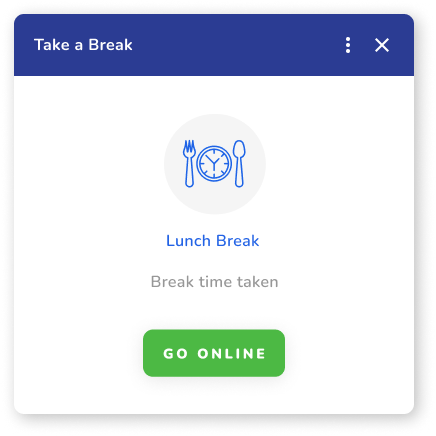
| Break Types | Description | System Status |
|---|---|---|
| Tea Break | Short refreshment break | Status changes to Break |
| Lunch Break | Meal break | Status changes to Break |
| Training | Training or meeting time | Status changes to Break |
| Freshen up Break | Personal time | Status changes to Break |
| Escalations | Time for escalation handling | Status changes to Break |
Break Status Notes:
-
System automatically changes status
-
Cannot receive calls while on break
-
Must Go Online to resume calls
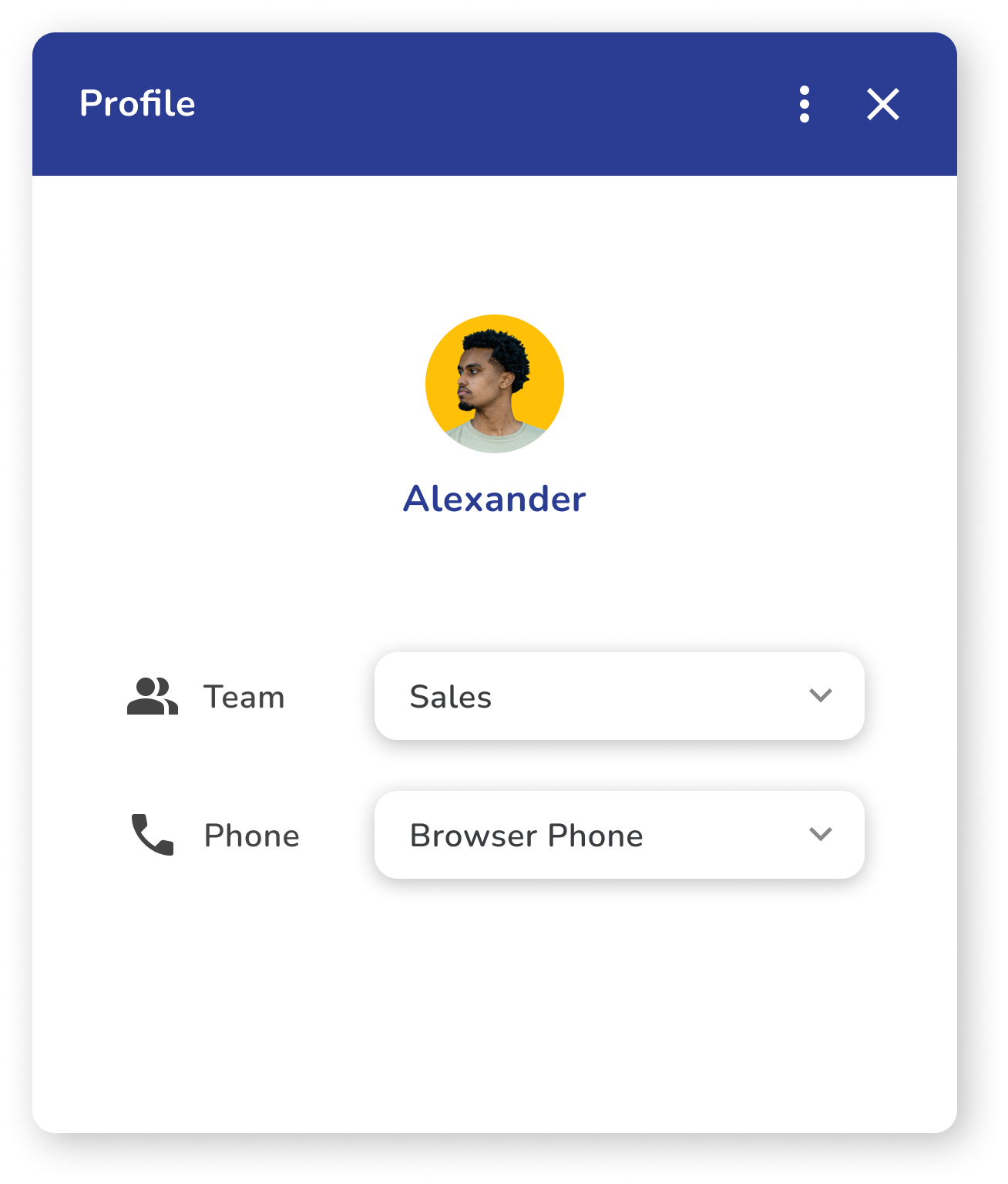
5. Profile Settings
a. Click keypad icon
b. ClClick three dots (⋮)
c. Select "Profile"
| Profile Options | Description |
|---|---|
| Profile Icon | Display picture |
| Profile Name | Your name |
| Team Switch | Select different assigned teams |
| Phone Type | Choose from: |
| - Browser Phone | |
| - Mobile | |
| - Mobile Bridge | |
| - SIP Phone |
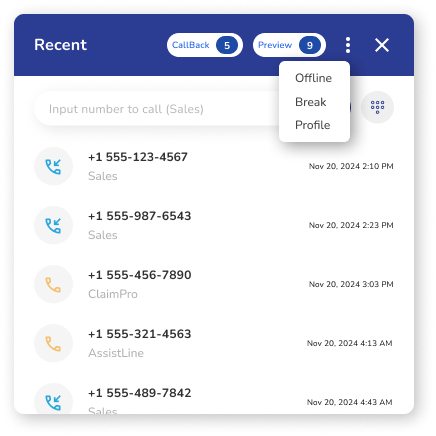
6. Recent Call List
a. Location: Bottom right after clicking keypad icon
b. Status: Shows current agent status (Online/Offline/Break)
Main Features
| Feature | Description |
|---|---|
| Recent Calls | List of recently handled calls |
| Callback Count | Number of pending callbacks |
| Preview Count | Number of previews calls available |
| Manual Dial Field | Enter phone number for outbound calls |
| Phone Icon | Click to initiate call |
| Keypad Icon | Open numeric keypad for dialing |
Options Menu (⋮)
a. Offline: Set status to offline
b. Break: Select break type
c. Profile: Access profile settings
Making Manual Calls
a. Ensure correct team is selected in profile
b. Enter number in dial field OR use keypad
c. Click phone icon to start call
Call routes through selected team
Important Notes:
-
Manual calls use selected team settings
-
Verify team before dialing
-
Check status before making calls
-
Keep track of callback/preview counts
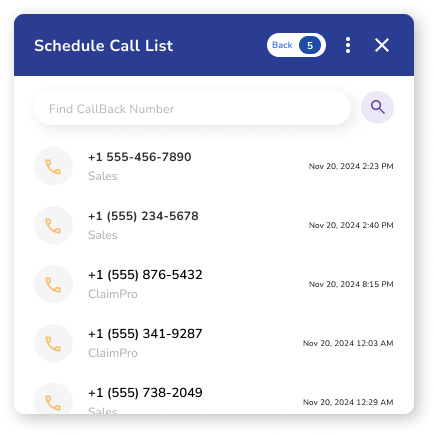
1. Accessing Schedule Call List
a. Click "Callback Count" button
b. Shows all scheduled callbacks
c. Search bar available at top
2. List View Features
| Field | Description |
|---|---|
| Search Bar | Filter schedule call list |
| Contact Details | Name and phone number |
| Schedule Date and Time | When call is due |
| Team Name | Name of the team |
3. List Management
a. Search Options
i. Search by name
b. Making Callback
i. Click on contact to view details
ii. Initiate call from list
iii. Update status after call
Important Notes:
-
Check schedule times regularly
-
Prioritize overdue callbacks
-
Update callback status promptly
-
Entering callback list sets you Offline
-
Cannot receive incoming calls while viewing callbacks
-
Must manually set status to "Go Online" after exiting
Preview Call Screen Guide
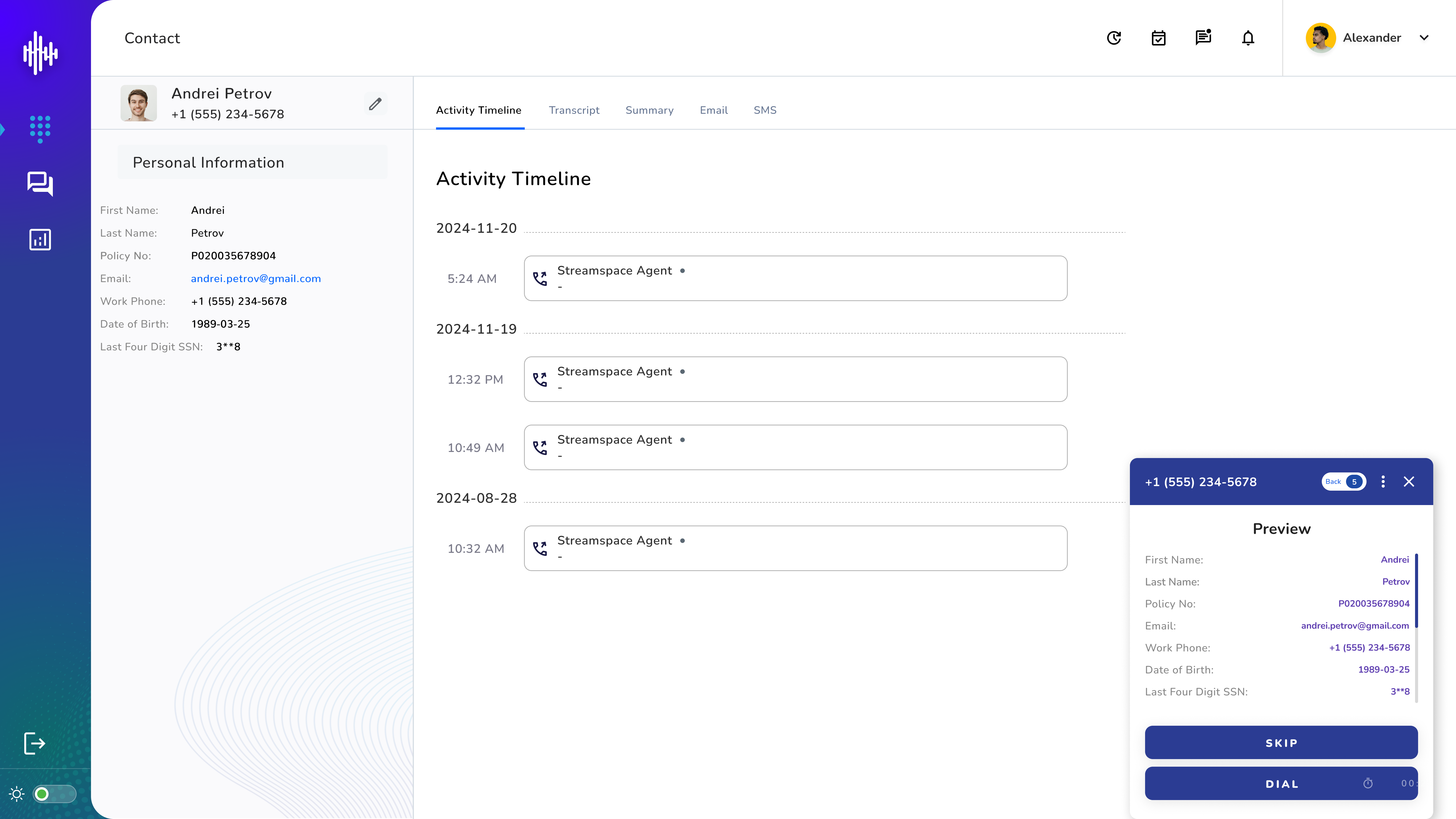
1. Contact Information Display based on available information
a. Customer Name
b. Customer Contact Number
c. Other information if available i.e Date of birth, Email Address, etc...
2. Auto-Dial Timer & Actions
a. Timer shows "Dial XXX" (XXX seconds countdown)
b. Call automatically initiates when timer reaches 0
c. Manual Dial: Click "Dial" button for immediate call
d. Skip: Move to next preview contact
e. Back: To go back to the recent calls list screen
f. Button (X): Minimize preview screen
3. Activity Timeline
a. Shows customer's previous call history
b. View all past interactions
c. Check call dispositions
d. Track communication history
Contact Screen and Call Management Guide
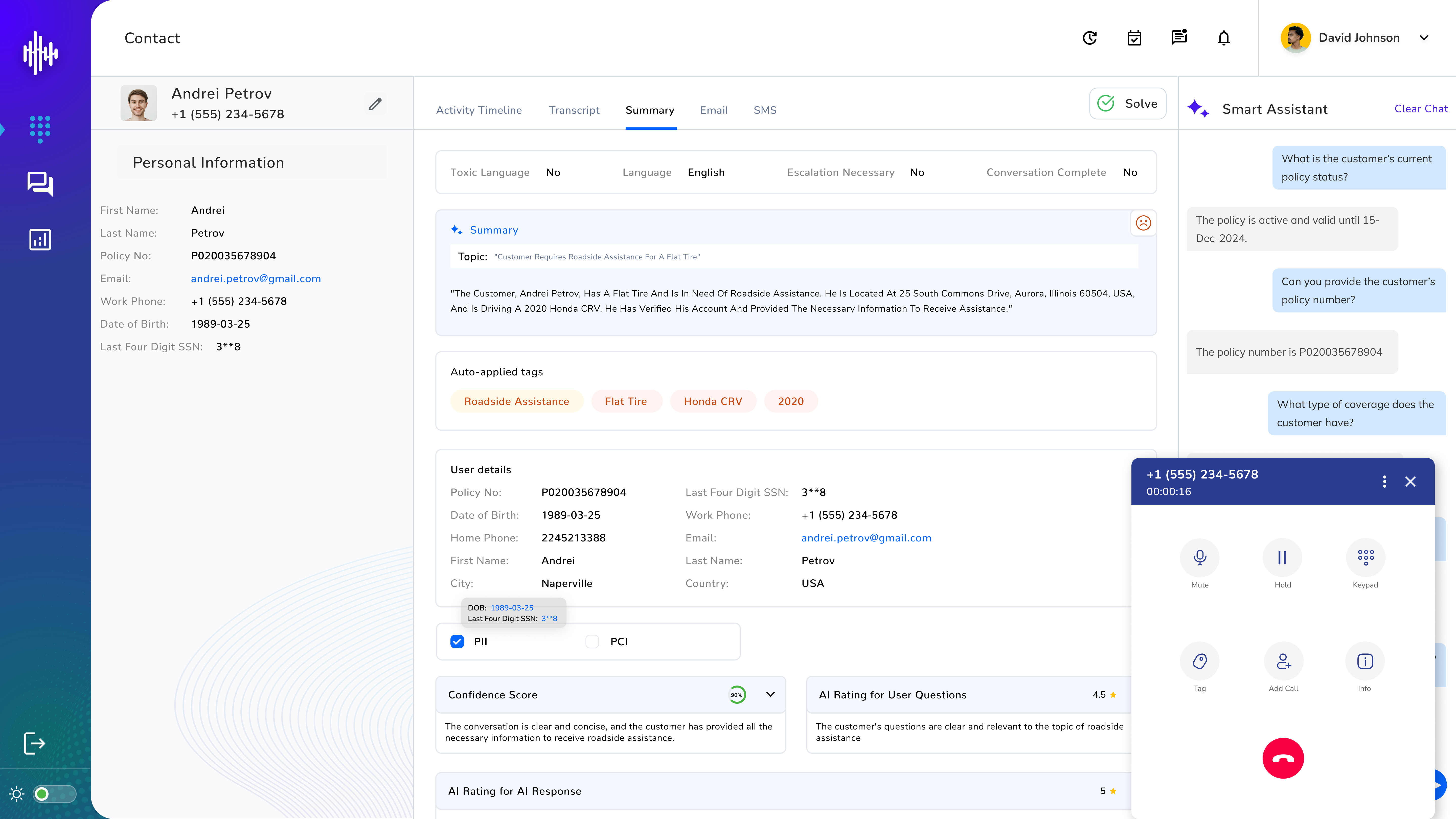
Screen Layout Features
| Section | Information |
|---|---|
| Personal Info | Name, Email, DOB, Contact |
| Activity Timeline | Historical call records |
| Transcription | Live call conversation text |
| Summary | Call highlights and outcomes |
1. Screen Layout Sections
a. Personal Information (Left Panel)
i. Name
ii. Email
iii. Date of Birth
iv. Contact Number
2. Main Navigation Tabs
a. Activity Timeline
i. Shows call history chronologically
ii. Date and time stamps
iii. Agent interaction records
iv. Call outcomes
b. Transcription Tab
i. Real-time call transcription
ii. Live text conversion of conversation
iii. Shows agent and customer dialogue
iv. Auto-scrolls during active call
v. Color-coded speakers:
1. Agent text (differentiated color)
2. Customer text (different color)
c. Summary Tab
i. Post-call summary
ii. Key points from conversation
iii. Important information highlighted
iv. Action items noted
v. Customer requests documented
vi. Call outcome recorded
3. Smart Assistant
a. Located top right corner
a. Provides AI assistance during calls
Call Control Interface
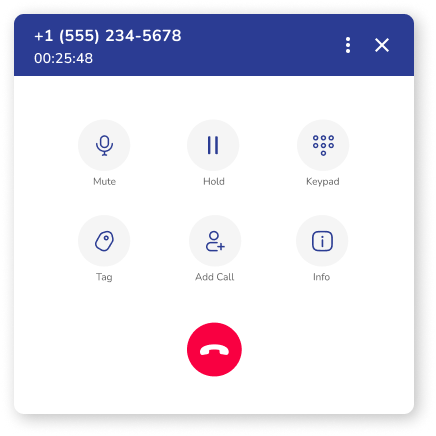
| Feature | Description |
|---|---|
| Mute | Toggle call audio |
| Hold | Place call on hold |
| Keypad | Open numeric keypad |
| Tag | Add tags to call |
| Add Call | Conference/transfer options |
| Info | View call information |
| End Call | Hangup/end call |
1. Call Status Display
a. Shows "Ringing..." during call initiation
b. Displays contact number
c. Options menu (⋮) available
d. Button (X) to minimize Call control interface
Important Features:
-
Live transcription available during calls
-
Call history viewable in timeline
-
Smart Assistant for support
-
Multiple call management options
Call Disposition Guide
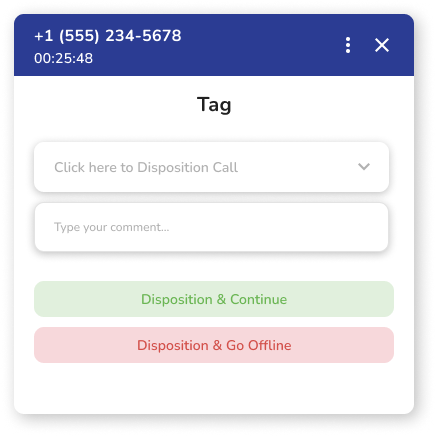
1. Tag Screen Elements
| Element | Description |
|---|---|
| Call Timer | Shows duration |
| Disposition Dropdown | Select call outcome tag |
| Comment Field | Add call notes |
| Action Buttons | Choose next status |
2. Disposition Process
a. Select appropriate tag from dropdown
b. Add relevant comments
c. Choose action:
i. "Disposition & Continue": Save and stay online
ii. "Disposition & Go Offline": Save and go offline
Important Notes
-
Tags are team-specific
-
Disposition required before ending call
-
Comments provide context for future reference
-
Timer shows total call duration