Creating and Configuring Workflows
Learn how to create new workflows and configure smart agents in StreamSpace Studio.
Overview
Workflows are automated processes that handle tasks like customer interactions, document processing, and intelligent routing. StreamSpace Studio provides a comprehensive workflow builder with AI-powered agents and customizable configurations.
This guide covers:
- Creating new workflows
- Configuring workflow types and settings
- Setting up Text-to-Speech and Speech-to-Text
- Configuring Smart Agent providers
- Managing guardrails and routing
Creating a New Workflow
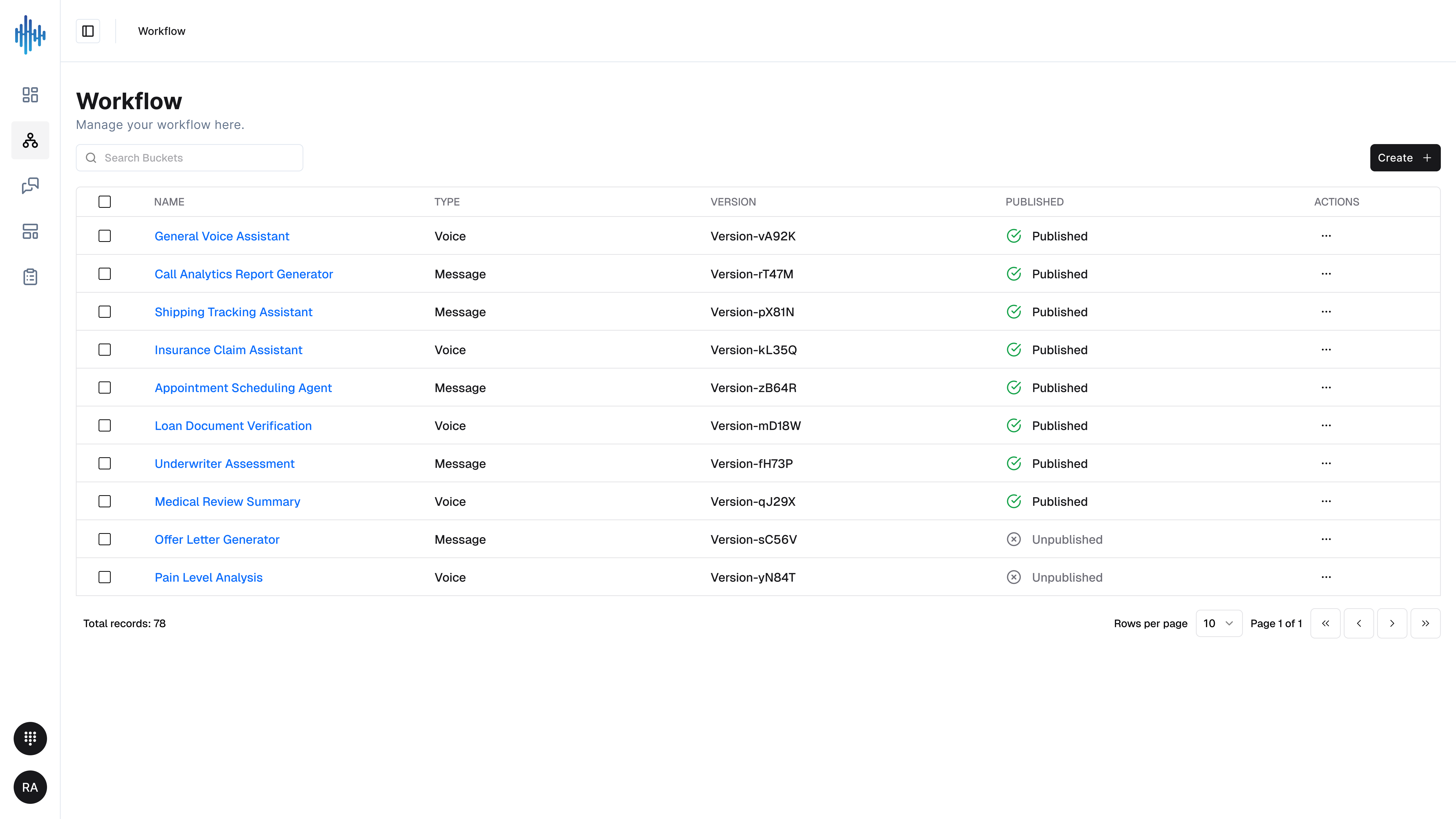
To create a new workflow, navigate to the Workflow module and click the "Create +" button in the top-right corner.
Before You Start:
Consider what you want your workflow to accomplish:
- Will it handle text messages, voice calls, or both?
- What language(s) will it support?
- What AI provider will power the workflow?
- What guardrails or safety measures are needed?
Workflow Configuration Dialog - Part 1: Basic Settings
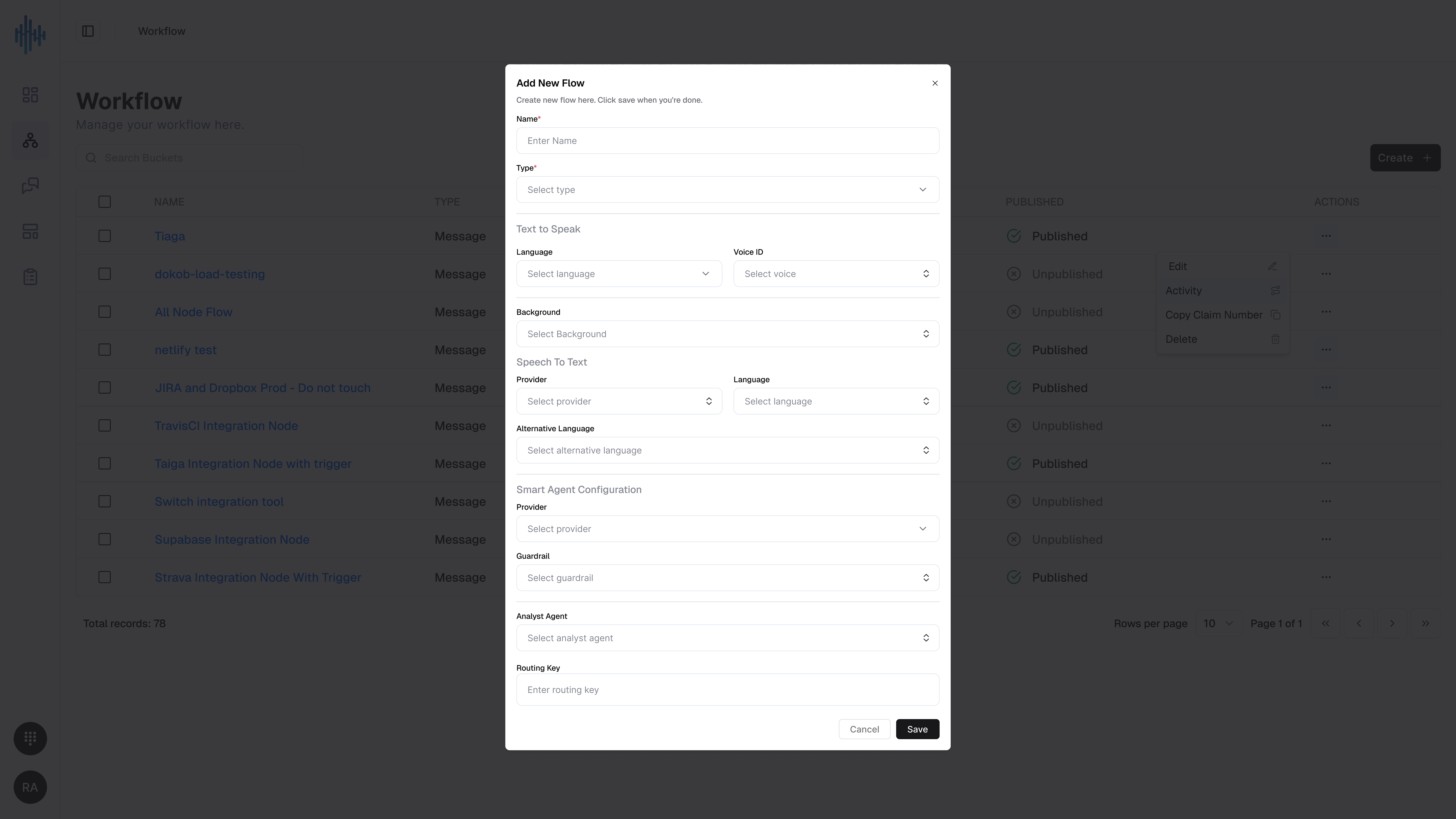
The "Add New Flow" dialog provides comprehensive configuration options for your workflow. The dialog is organized into sections that appear based on your workflow type selection.
Basic Information
Name (Required)
Enter a descriptive name for your workflow that clearly identifies its purpose.
Best Practices:
- Use clear, descriptive names (e.g., "Customer-Support-Chat", "Insurance-Claim-Intake")
- Avoid generic names like "Test" or "New-Workflow"
- Include the workflow type or purpose in the name
- Use hyphens or underscores for readability
Type (Required)
Select the workflow type from the dropdown menu. The type determines how the workflow receives and processes input.
Available Types:
- Message: Text-based interactions (chat, messaging platforms)
- Voice: Voice-based interactions (phone calls, voice assistants)
- Custom: Specialized workflow types for specific use cases
The selected type affects which configuration options appear below.
Text-to-Speech Configuration
Configure how the system converts text responses into spoken audio for voice-based workflows.
Language
Select the primary language for speech synthesis.
Options include:
- English (various accents)
- Spanish
- French
- German
- And other supported languages
Choose the language that matches your target audience for the most natural-sounding speech.
Voice ID
Select a specific voice model for text-to-speech output.
Considerations:
- Different voices may sound more appropriate for different use cases
- Consider gender, accent, and tone when selecting
- Test different voices to find the best match for your brand
Background
Optional: Add background audio or music to voice interactions.
Use Cases:
- Hold music for customer service lines
- Ambient sounds for specific scenarios
- Branded audio elements
Background audio should enhance, not distract from the conversation.
Speech-to-Text Configuration
Configure how the system converts spoken audio into text for processing.
Provider
Select the speech-to-text service provider.
Common Providers:
- Google Cloud Speech-to-Text
- Amazon Transcribe
- Microsoft Azure Speech
- Custom providers
Considerations:
- Different providers may have varying accuracy for different accents
- Consider pricing and usage limits
- Some providers offer specialized models for specific industries
Language
Select the language for speech recognition.
Best Practice: Match this to the Text-to-Speech language for consistency unless you're building a multilingual workflow.
Alternative Language
Optional: Add support for additional languages if your workflow needs to handle multiple languages.
Use Cases:
- Multilingual customer support
- International call centers
- Regions with multiple common languages
Smart Agent Configuration
Smart Agent Configuration determines which AI provider powers your workflow's intelligence and decision-making capabilities.
Provider (Required)
Select the AI/LLM provider that will power your workflow's intelligent responses.
Common Providers:
- OpenAI (GPT models)
- Anthropic (Claude models)
- Google (PaLM, Gemini)
- Custom providers
Selection Criteria:
- Accuracy: How well does the model understand and respond to queries?
- Speed: Response time requirements for your use case
- Cost: Pricing per token or request
- Capabilities: Specialized features (function calling, vision, etc.)
- Compliance: Data residency and privacy requirements
Guardrail
Configure safety and content moderation for AI responses.
What Guardrails Do:
- Filter inappropriate or harmful content
- Enforce brand voice and tone guidelines
- Prevent disclosure of sensitive information
- Ensure responses stay on-topic
- Block specific topics or language
Configuration Options:
- Select Guardrail: Choose from pre-configured guardrail templates
- Custom Rules: Define specific filtering criteria
- Severity Levels: Set thresholds for blocking or flagging content
Best Practices:
- Always enable guardrails for customer-facing workflows
- Test guardrails thoroughly before publishing
- Review flagged content regularly to refine rules
- Balance safety with user experience
Analyst Agent
Optional: Configure a specialized agent for analytics and reporting.
Use Cases:
- Analyzing conversation patterns
- Extracting insights from interactions
- Generating reports on workflow performance
- Identifying improvement opportunities
When to Use:
- High-volume workflows requiring analysis
- Compliance and quality monitoring
- Customer experience optimization
- Business intelligence applications
Routing Key
Define the routing logic for directing conversations to the appropriate handler.
What Routing Keys Do:
- Direct conversations based on intent or keywords
- Route to different AI models based on complexity
- Distribute load across multiple agents
- Implement escalation paths
Configuration:
- Enter a unique identifier for routing logic
- Use descriptive keys (e.g., "billing_inquiries", "technical_support")
- Document routing rules for team reference
Best Practices:
- Use consistent naming conventions
- Map routing keys to business processes
- Test routing logic thoroughly
- Monitor routing effectiveness
Workflow Creation Steps
Follow these steps to create a complete workflow:
Step 1: Open the Creation Dialog
- Navigate to the Workflow module from the left sidebar
- Click the "Create +" button in the top-right corner
- The "Add New Flow" dialog will appear
Step 2: Configure Basic Settings
- Enter a descriptive Name for your workflow
- Select the Type (Message, Voice, or Custom)
- Review the sections that appear based on your type selection
Step 3: Configure Text-to-Speech (for Voice workflows)
- Select your preferred Language
- Choose a Voice ID that matches your use case
- Optionally add Background audio
Step 4: Configure Speech-to-Text (for Voice workflows)
- Select a Provider for speech recognition
- Choose the primary Language
- Add Alternative Languages if needed for multilingual support
Step 5: Configure Smart Agent
- Select an AI Provider
- Configure Guardrails for content safety
- Set up Analyst Agent if needed for analytics
- Define a Routing Key for conversation routing
Step 6: Save and Test
- Click "Save" to create the workflow
- The workflow will appear in your workflow list with "Unpublished" status
- Test the workflow thoroughly before publishing
- Click "Publish" when ready to activate
New workflows are created in "Unpublished" status. You must explicitly publish them to make them active.
Configuration Best Practices
Planning Your Workflow:
Before creating a workflow, document:
- Purpose: What problem does this workflow solve?
- Audience: Who will interact with this workflow?
- Channels: Where will this workflow be used? (Web chat, phone, etc.)
- Languages: What languages need to be supported?
- Escalation: When should conversations be escalated to humans?
Naming Conventions:
Use a consistent naming structure:
[Department]-[UseCase]-[Channel](e.g., "Support-Billing-Chat")[Product]-[Function]-[Version](e.g., "Insurance-Claims-v2")- Include version numbers for tracking iterations
Testing Requirements:
Before publishing any workflow:
- Test all conversation paths and edge cases
- Verify language and voice settings
- Confirm guardrails block inappropriate content
- Test routing logic with various inputs
- Validate integration with external systems
- Review AI responses for accuracy and tone
Version Management:
- Create new versions instead of overwriting production workflows
- Document changes in version notes
- Keep previous versions as backups
- Test new versions in parallel before switching
Security Considerations:
- Enable appropriate guardrails for all customer-facing workflows
- Avoid exposing sensitive data in workflow responses
- Review and rotate API keys regularly
- Implement rate limiting for high-volume workflows
- Monitor for unusual activity or abuse
Understanding Workflow Types
Message Workflows:
Best for text-based interactions including:
- Website chat widgets
- Messaging platforms (WhatsApp, SMS, etc.)
- Slack or Microsoft Teams integrations
- Email automation
Configuration Focus:
- Fast response times
- Text formatting and markdown support
- Link and button integrations
- Persistent conversation history
Voice Workflows:
Best for voice-based interactions including:
- Phone systems (IVR)
- Voice assistants
- Call center automation
- Voice-enabled applications
Configuration Focus:
- Natural-sounding text-to-speech
- Accurate speech recognition
- Handling background noise
- Conversation pacing and timing
Provider Selection Guide
AI Provider Comparison:
OpenAI (GPT models):
- Strengths: Widely adopted, strong general knowledge, good multilingual support
- Best for: General chatbots, content generation, Q&A systems
- Considerations: Cost, API rate limits
Anthropic (Claude models):
- Strengths: Strong reasoning, good at following complex instructions, safety-focused
- Best for: Complex decision-making, analysis, compliance-sensitive applications
- Considerations: Context window size, availability
Google (PaLM/Gemini):
- Strengths: Integration with Google services, multimodal capabilities
- Best for: Workflows requiring Google integration, image understanding
- Considerations: Regional availability, pricing
Custom Providers:
- Strengths: Full control, specialized models, data privacy
- Best for: Industry-specific applications, compliance requirements
- Considerations: Setup complexity, maintenance
Speech-to-Text Provider Comparison:
Google Cloud Speech:
- Excellent multilingual support
- Good accuracy across accents
- Real-time and batch processing
Amazon Transcribe:
- Strong integration with AWS services
- Custom vocabulary support
- Medical and call center specializations
Microsoft Azure Speech:
- Enterprise-grade compliance
- Custom voice models
- Strong language coverage
Troubleshooting Common Issues
Workflow Won't Save:
- Check required fields: Name and Type are mandatory
- Verify provider credentials: Ensure API keys are valid
- Review guardrail configuration: Invalid rules may prevent saving
- Check permissions: Ensure you have workflow creation rights
Voice Quality Issues:
- Try different Voice IDs: Some voices may sound more natural
- Adjust language settings: Ensure language matches content
- Check audio background: Remove or adjust background audio
- Test provider settings: Switch providers if quality is poor
Speech Recognition Errors:
- Verify language selection: Must match spoken language
- Add alternative languages: For multilingual conversations
- Test different providers: Some handle accents better
- Use custom vocabulary: For industry-specific terms
Routing Problems:
- Verify routing key syntax: Check for typos or invalid characters
- Test routing logic: Ensure rules match expected inputs
- Review execution logs: Check where conversations are being routed
- Simplify routing: Start simple, add complexity gradually
AI Response Issues:
- Review guardrail settings: May be blocking valid responses
- Check provider configuration: Ensure API access is working
- Test with simple inputs: Isolate the problem
- Review conversation context: Ensure sufficient context is provided
Next Steps
After creating your workflow:
- Design the Conversation Flow: Build the logic and decision trees
- Configure Integrations: Connect to external systems and APIs
- Test Thoroughly: Verify all scenarios and edge cases
- Publish the Workflow: Make it available for production use
- Monitor Performance: Track execution logs and user feedback